
Codex is an AI agent built by OpenAI to help people get work done. It is connected to your ChatGPT account and can be used through Codex web, the desktop app, the CLI, and developer tools.
Where ChatGPT is great for conversation, drafting, and thinking things through, Codex is built for structured tasks. It can read context, work across files, create drafts, make changes, run checks, and come back with something you can review and use.
OpenAI originally introduced Codex as a coding tool. Today, it is increasingly useful for broader knowledge work. You can delegate research, analysis, document creation, prototyping, and workflow design to Codex in plain language.
OpenAI says more than 5 million people now use Codex every week. Non-developers, including analysts, marketers, operators, designers, researchers, investors, and bankers, make up about 20% of overall users and are growing more than three times as fast as developers.
Many professionals already use ChatGPT, so the natural question is: why use Codex too?
The simplest way to think about it: ChatGPT is a thinking partner. Codex is a workbench assistant.
Use ChatGPT to explore, draft, brainstorm, and work through ideas in conversation. Use Codex when you want to hand off a task and get a finished output: a document, report, prototype, checklist, or workflow.
Say you're planning a new customer onboarding experience. You'd use ChatGPT to think through the ideal journey, the key messages, and what good looks like. Then you'd use Codex to turn that into a checklist, an email sequence, or a simple internal playbook.
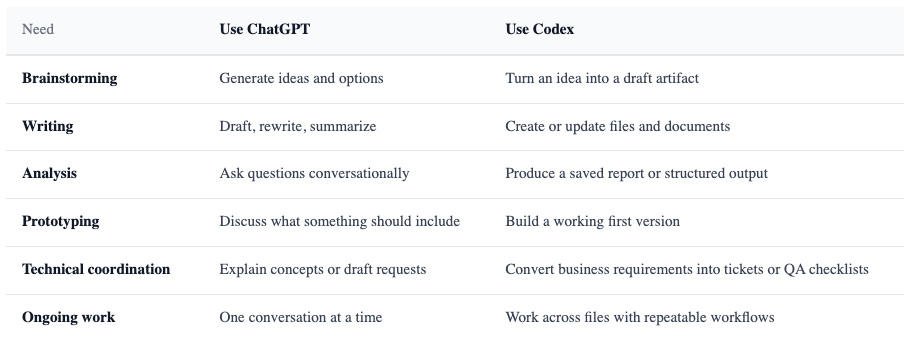
The two tools work well together. ChatGPT helps clarify your thinking. Codex helps you act on it.
Codex is useful for anyone who regularly turns ideas, documents, or workflows into finished outputs. It's not only for engineers.
Roles that get the most out of it:
Codex is included across ChatGPT Free, Plus, Pro, Business, Edu, and Enterprise plans. Usage limits vary by plan, and Business, Edu, or Enterprise workspaces may require an admin to enable access or approve specific tools.
There are a few ways to access Codex. For most business professionals, the easiest way to start with Codex is the desktop app. Codex web may also be available through your ChatGPT account or workspace, but it may not appear for every user, plan, region, or workspace configuration.
Option A: Codex app (desktop)
Go to https://chatgpt.com/codex and download the Codex app for macOS or Windows. Open it, sign in with your ChatGPT account, choose a project folder, and send your first request.
Option B: Codex web, if available
Open Codex from your ChatGPT workspace, sign in, connect a GitHub account if your work requires it, and describe what you want. This option is more relevant if you are collaborating closely with an engineering team.
Option C: CLI or IDE extension
These are tools developers use to run Codex directly inside their technical environment, either by typing commands into a terminal window or from within the software they use to write code. You don't need to worry about these as a business user, but your engineering team likely will.
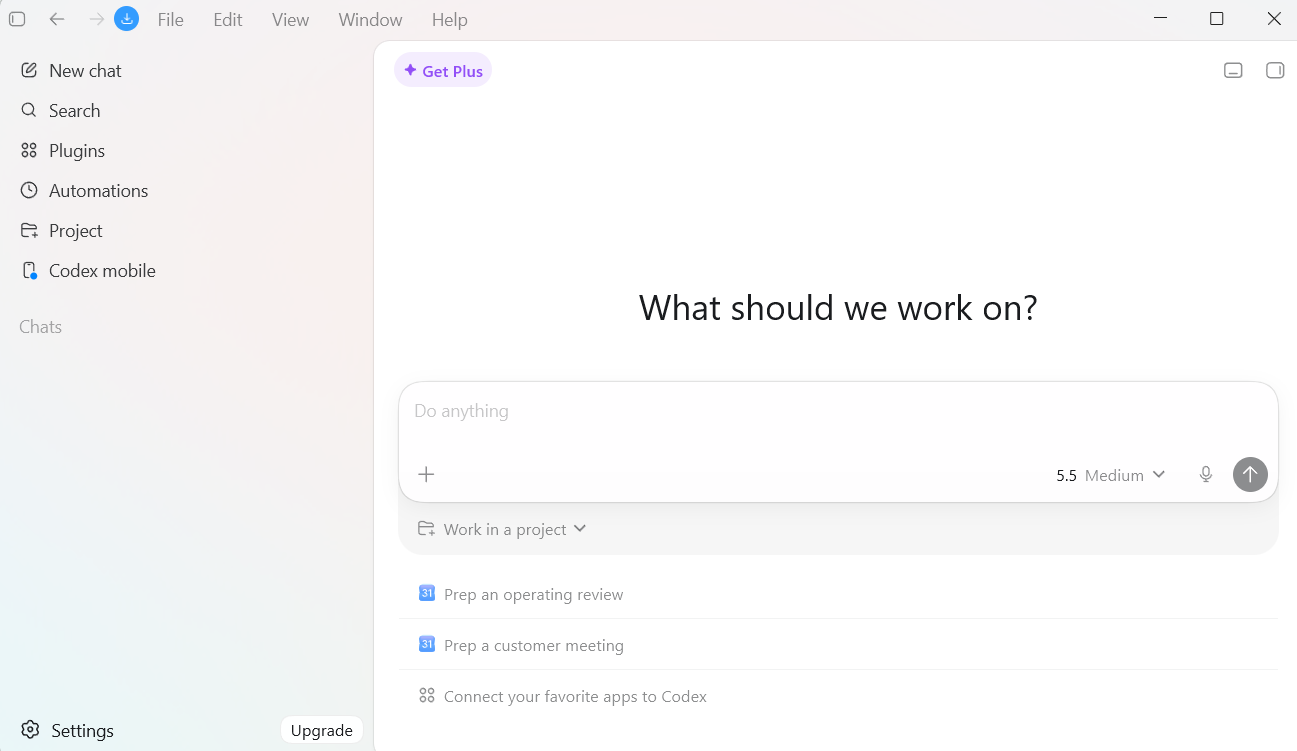
Codex desktop app home screen
Here are the main things Codex can help with.
Ask Codex to write a blog post, a one-page sales brief, a product spec, a checklist, or an internal guide. Give it context about your audience and what you need, and it produces a draft you can review and edit.
Example: "Create a one-page sales brief for this new product feature. Include target customer, pain point, value proposition, objection handling, and discovery questions."
Give Codex a document, process guide, or folder of materials and ask it to suggest improvements. It can flag unclear sections, missing context, inconsistencies, and opportunities to reorganize the work.
Example: "Review this onboarding guide. Flag anything unclear for a new customer success manager and reorganize it into steps, owners, and success signals."
One of the most useful things for non-technical professionals. Codex can convert a business idea into a product ticket, user story, acceptance criteria, or QA checklist, in the format your engineering team actually uses.
Example: "Turn this business request into a product ticket. Include the user problem, desired outcome, acceptance criteria, edge cases, and open questions."
Codex can create a simple first version of a landing page, internal dashboard, calculator, or tool. The goal isn't to replace your design or engineering team. It's to make the idea easier to see, discuss, and improve before investing serious resources.
Example: "Create a prototype for an internal sales dashboard. Show pipeline value, deals by stage, next follow-up dates, and at-risk opportunities. Use realistic sample data."
Unlike a chat response that disappears, Codex can work with a folder of files: inspect what's already there, create new files, update existing ones, and summarize what changed.
This is where Codex gets genuinely powerful for teams. Once you've run a workflow that produces good results, you can save it as a skill: a reusable set of instructions with a name, expected inputs, step-by-step process, and output format.
From that point, running the workflow again takes one instruction instead of rebuilding it from scratch. Skills can be saved at the user level (available across all your projects) or the project level (shared within a specific workspace).
Common examples: a weekly triage dashboard, a credit analysis workflow, a meeting summary template, a product launch checklist.
Example: "Create a reusable skill called 'weekly triage' that summarizes my unread emails, pulls my calendar for the week, and creates a prioritized task list with deadlines."
Eligible teams can use Codex to create and deploy simple internal web pages: a product launch hub, a campaign tracker, a training resource, or a lightweight prototype. These are easier to share and review than a static document.
Availability for Sites may depend on your plan, workspace, region, and admin settings.
Plugins extend what Codex can do by connecting it to tools, workflows, or role-specific capabilities. For business teams, this is important because it lets Codex work closer to the systems people already use.
OpenAI has introduced role-specific plugins for areas such as data analytics, creative production, sales, product design, public equity investing, and investment banking. These plugins are designed to bundle useful apps, skills, and workflows for a particular function.
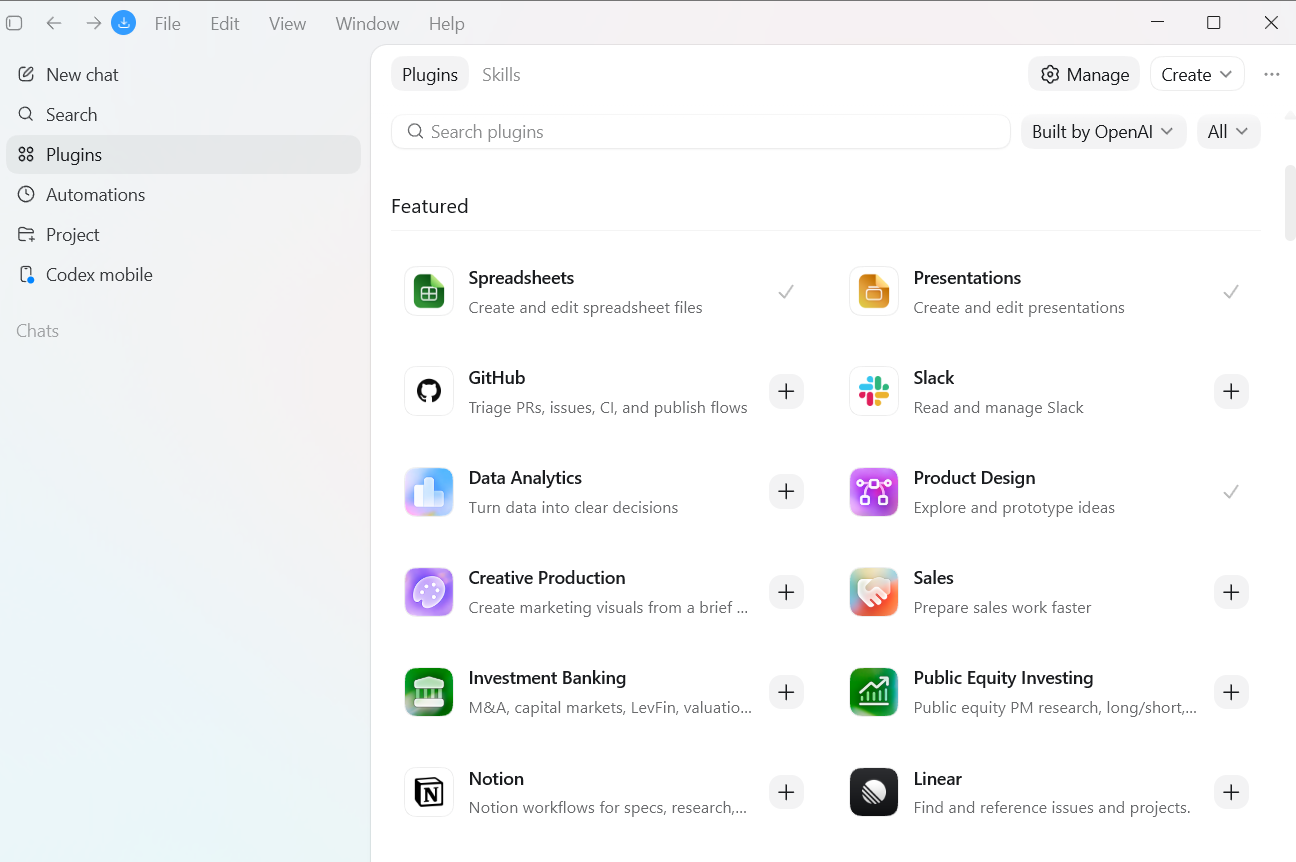
Availability may vary by plan, region, and workspace settings. In Business, Edu, and Enterprise workspaces, admins can control which plugins are available and what actions they can take.
Depending on your workspace settings, Codex can connect to services like GitHub, Slack, Google Drive, email, or calendar tools, and work from real context instead of isolated prompts. Only connect tools your organization approves, and check permissions before sharing sensitive data.
Codex can help review work by leaving comments, notes, explanations, or suggested changes. This is useful when reviewing documents, prototypes, website drafts, internal process files, or project changes.
For business users, annotations are useful because they make feedback specific. Instead of saying "make this better," you can ask Codex to identify exactly what should change and why.
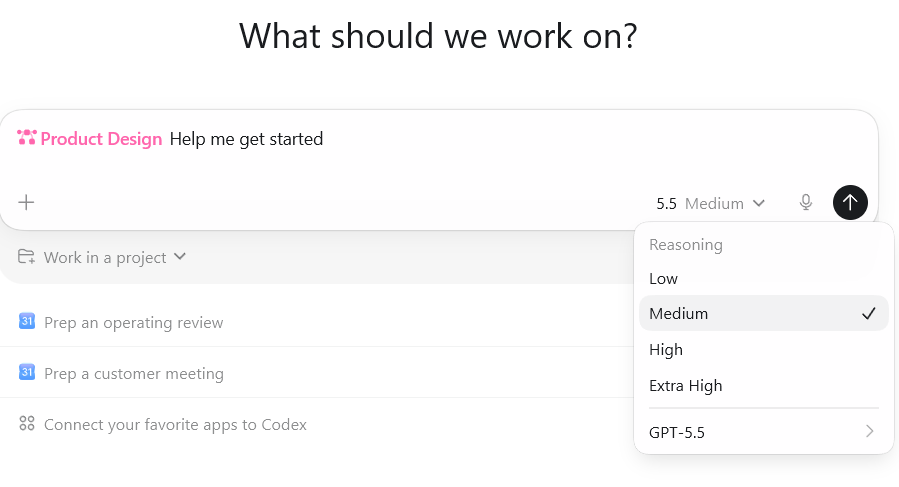
Codex can use different reasoning levels, and the setting you choose can affect speed and usage.
For most business tasks, start with a low or medium reasoning level if available. It is usually enough for drafts, summaries, basic analysis, and document cleanup. Save higher reasoning levels for tasks that require deeper analysis, careful tradeoffs, or complex multi-step work.
You can always rerun a task with a higher setting if the first result is not strong enough.
Before Codex finalizes any output, ask it to be transparent about its reasoning:
"List your assumptions, risks, and anything a human should review before we use this."
This keeps you in control. Codex can move fast, but humans should still approve anything with business, legal, financial, or customer-facing implications.
Treat every first output as a draft. Add context, correct specific parts, or refine your instructions. The quality of what you get back depends a lot on the quality of what you ask.
A useful framework for writing prompts is our CIDI: Context (who you are and what the situation is), Instructions (the specific task), Details (tone, format, audience, length), and Input (the files or data Codex needs). The more complete your prompt, the better the first result.
The best way to start is small. Give Codex a low-risk task, like summarizing your unread emails or organizing a document, review the output, refine your instructions, and then build toward the workflows that save you the most time each week.
Knowing which prompts work, how to structure tasks, and how to connect Codex to your specific workflows is where most teams stall.
AI Academy delivers corporate AI training built for business professionals. We offer Codex-specific training for teams, covering setup, role-based use cases, and practical workflows your team can apply from day one.
Learn about our corporate training programs
Is Codex only for developers?
No. About 20% of Codex users are non-developers, and that group is growing faster than the developer base. If you can describe a task clearly and review a result, you can use Codex.
What's the difference between Codex and ChatGPT?
ChatGPT is best for thinking, drafting, and exploring in conversation. Codex is best for delegating tasks that produce a finished output: a document, report, prototype, or workflow.
Is Codex free?
There's a free tier with limited access. The Plus plan ($20/month) is the practical entry point for regular use. Some features like Sites and role-specific plugins require a Business or Enterprise plan.
Do I need to download anything?
Not necessarily. You can use Codex web through your ChatGPT account if it is available to you. The Codex desktop app is also available for macOS and Windows.
What are skills and how do I use them?
Skills are reusable workflows you save in Codex. Once a task produces good results, you document the process as a skill with a name, inputs, steps, and expected output. From that point, you can run it with a single instruction instead of rebuilding it each time.
Can Codex automate recurring tasks?
Yes. Once a workflow produces good results, ask Codex to run it on a schedule. It handles the execution and delivers the output at the scheduled time.
What reasoning level setting should I use?
Start with medium for most tasks. It's faster and more cost-effective. Move to higher settings only when a task requires deep analysis or the medium output isn't meeting the bar.
Is our company data safe?
Codex only works with data your account and workspace allow it to access. Business, Edu, and Enterprise workspaces may have admin controls for connected apps, plugins, and permissions. Teams should follow their internal data policies before connecting tools or sharing sensitive information.
What if the output is wrong?
Treat the first output as a draft. Ask Codex to show assumptions, add review notes, correct specific parts, or revise using better context. For decision-critical work, verify the underlying facts and data directly.


.png)
.png)