
Most people use AI the same way. They open ChatGPT, Claude, Copilot, or Gemini in a browser tab or use the app, type a question, get an answer, then copy and paste that answer into whatever document they're actually working on.
That works, but there's a more efficient way.
All of these AI tools can now be used directly inside Word, Excel, and PowerPoint (or their Google equivalents, Docs, Sheets, and Slides). No copy-pasting between tabs. No exporting files back and forth. The AI sits in a sidebar right next to your document, reads what you have open, and helps you edit it in place. Sometimes it's built into the app already, and sometimes you install it as an add-in in about two minutes.
That shift matters more than it sounds. When AI is one click away in the tool you're already using, you actually use it more. You start reaching for it on small tasks you wouldn't have bothered to switch tabs for. That's when habit forms.
Now that you know AI can live inside your Office apps, the real value comes from knowing what to use it for. Below is a breakdown of what actually works in each of the three core apps, with the kind of examples we walk through with teams in our corporate training sessions.
Word is where AI can do the most for you if you know how to prompt it well. With enough context, audience, purpose, tone, key points, examples of your style, it can produce genuinely useful drafts. Without that context, it produces something generic that needs heavy rewriting.
Practical use cases:
What to watch out for:
AI doesn't know your company, your client, or the specific context of your work. It fills gaps with plausible-sounding content that can be wrong. Always review before sending, especially anything with facts, figures, or commitments.
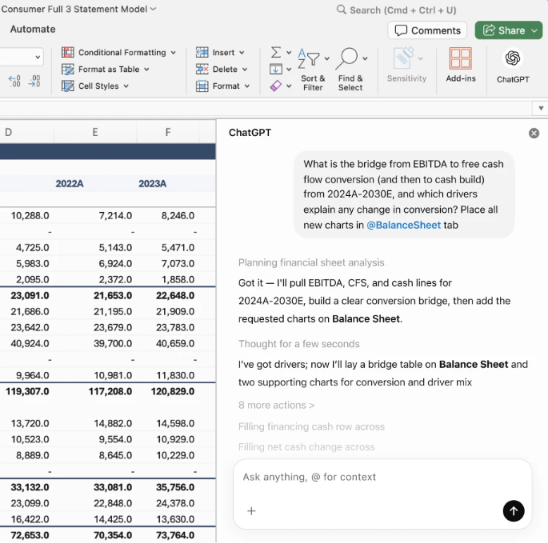
This is where AI probably saves the most time for the most people, especially those who don't consider themselves "Excel people." What matters here: the edits AI makes create real, editable formulas, not static data, and everything is undoable.
Practical use cases:
What to watch out for:
On high-stakes data, always double-check what AI produces. Hallucinations happen even inside spreadsheets, especially with complex financial data or large multi-tab files. And if you're working on a shared spreadsheet, especially one stored on SharePoint or a shared drive that other people use, make a copy of the file before you start experimenting with AI. Let AI make changes to your copy, verify the results, then apply what works back to the original. That protects the original from accidental edits and gives you a clean rollback if something goes wrong.
Presentations take too long to build relative to how long people actually look at each slide. AI cuts that time significantly.
Practical use cases:
What to watch out for:
AI-generated slides can look generic without a proper template. This is exactly why brand kits matter: they give AI the visual guardrails to produce slides that actually look like they came from your company.
There are four main AI tools that work directly across your office apps, and each has its own way of getting started.
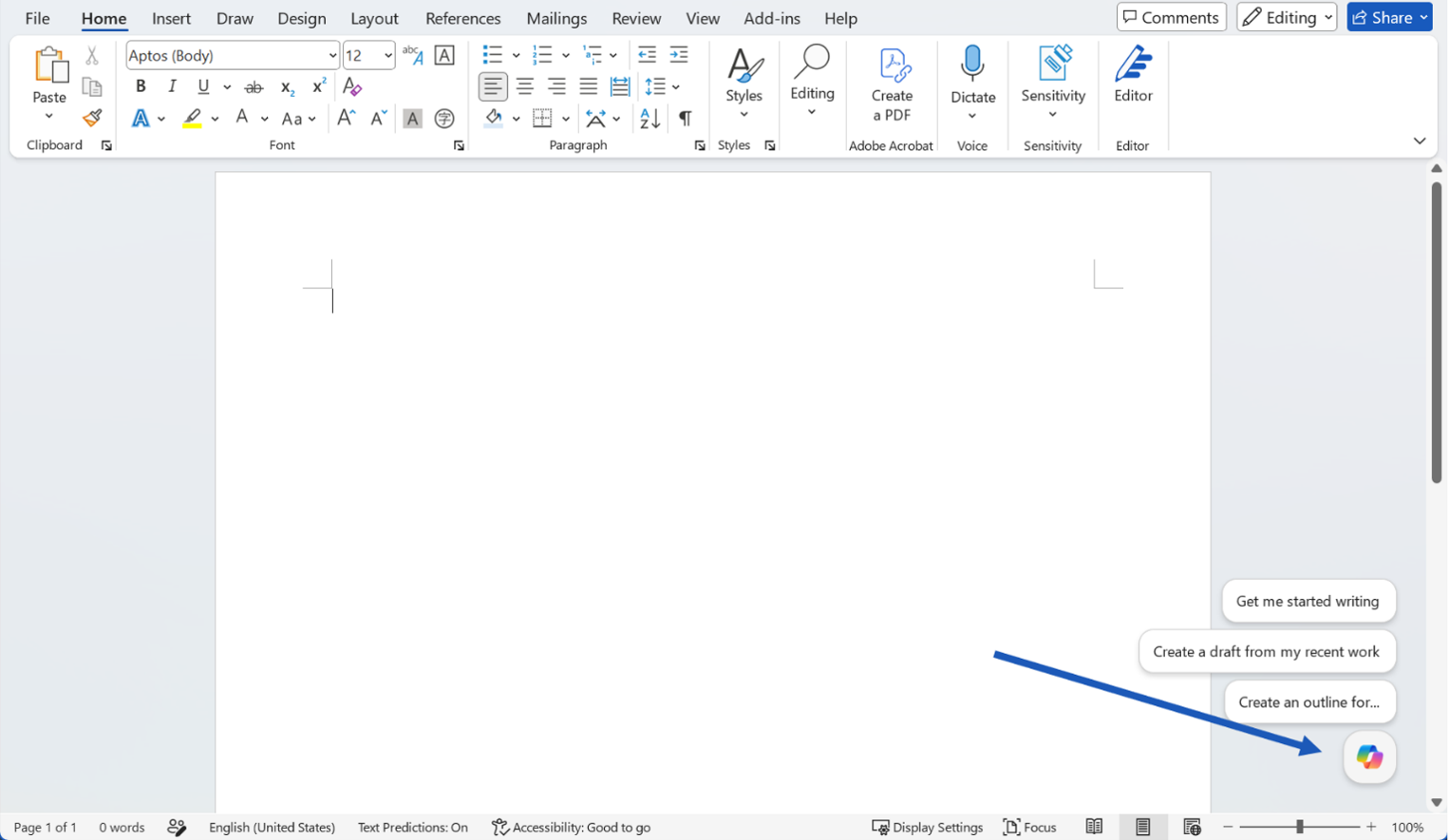
Microsoft Copilot is built directly into Word, Excel, and PowerPoint, no installation needed if it's turned on for your account. Open any of the three apps and look for the Copilot icon, either on the Home tab of the ribbon or as a floating icon in the bottom-right corner of the screen. It requires a paid Copilot license on top of your existing Microsoft 365 plan.
Google Gemini is built into Docs, Sheets, and Slides. Open any of the three and look for the Gemini spark icon in the top-right toolbar to open the side panel. It's included with Google Workspace Business Standard plans and above. Business Starter includes only limited Gemini access in Gmail.
ChatGPT offers official add-ins that install directly into Microsoft Excel and PowerPoint (with PowerPoint currently in beta). In either app, go to Insert → Get Add-ins (or Home → Add-ins on some versions), search "ChatGPT," click Add, then sign in with your OpenAI account. The Excel add-in works with any ChatGPT account, including the free tier. Paid plans get higher usage limits.
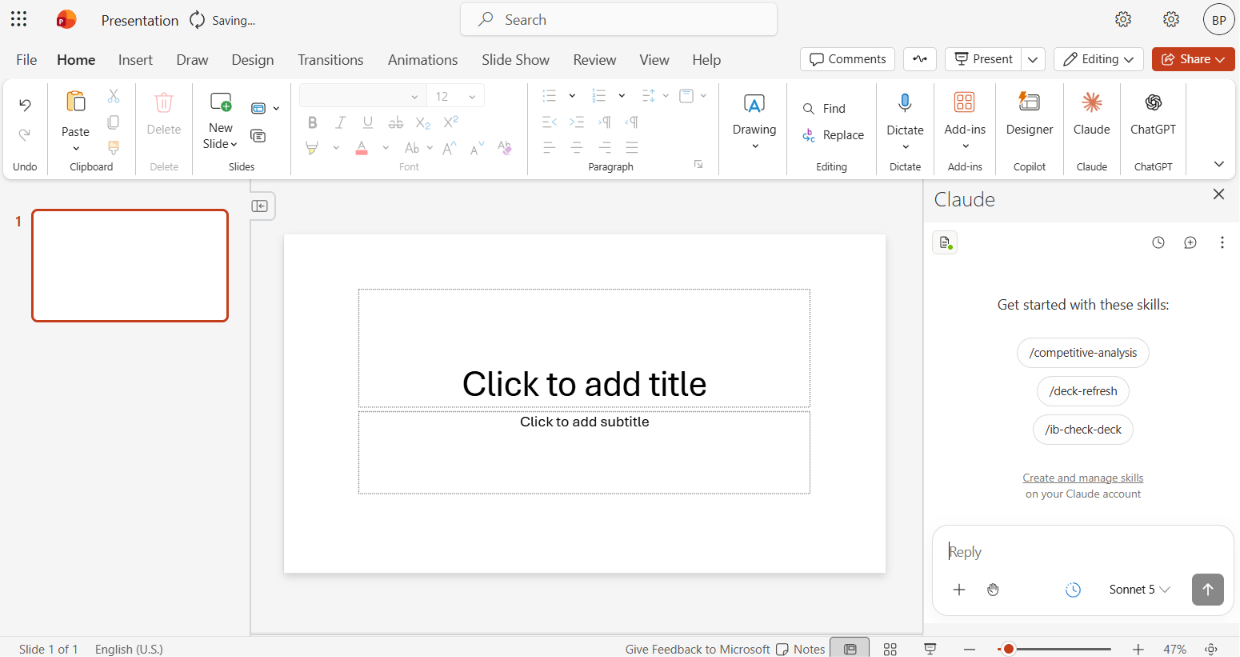
Claude offers official add-ins for Word, Excel, and PowerPoint. In any of the three apps, go to Insert → Get Add-ins, search "Claude by Anthropic," click Add, then sign in with your Claude account. It requires a paid Claude plan. One notable feature: Claude carries context across Word, Excel, and PowerPoint in a single session, so it remembers what you were working on as you move between apps.
If you're not sure what your organization already has access to, ask your IT team. Many companies have licenses their people don't know about.
Knowing these features exist is one thing. Actually using them is another. In our corporate training work, the biggest predictor of success isn't which AI tool a team picked, or how much they paid for it. It's whether they built the habit of reaching for AI on tasks where it actually helps.
The teams that get the most value do three things:
Individual access doesn't guarantee organizational impact. Teams that actually save time with AI are the ones where people know which tasks to use it on and how to use it well.
That's what AI Academy's corporate training programs deliver: hands-on sessions that go beyond feature demos to build real skills your team will use every week. Participants leave knowing how to apply AI to the work they were already doing.
Learn More About Corporate Training
Do I need a special license to use AI in Word, Excel, and PowerPoint (or their Google equivalents)?
Depends on the tool. Microsoft Copilot is a paid add-on to Microsoft 365. Google Gemini is included in Workspace Business Standard and above. ChatGPT's Excel add-in works with any account, including the free tier. Claude requires a paid Claude plan. Check with your IT team for what's available in your organization.
Can AI actually build a full PowerPoint deck for me?
It can produce a working first draft from a prompt or a reference document. The structure will usually be reasonable, but the design work still benefits from human attention, and applying your company's brand kit or template makes a big difference in how the output looks.
Will AI in Excel replace the need to know formulas?
It reduces how often you need to remember exact syntax, but understanding what a formula does is still useful. AI writes the formula, but you're still responsible for making sure it's doing what you think it is, especially on financial or high-stakes data.
Is it safe to use AI on sensitive company documents?
The paid, enterprise versions of Copilot, Gemini, ChatGPT, and Claude all have data protection policies stating your files aren't used to train public models. Specifics vary by plan. If you're working with sensitive data, check your organization's settings and terms before using cloud-based AI tools.
What's the fastest way to start if my team has access but nobody uses it?
Pick one recurring task per person, something they do every week, and use AI for that specific task for a month. The habit forms around the task, not around the tool. Structured training helps a lot here, which is why access alone rarely leads to adoption.
Should I test AI on shared files or make a copy first?
Make a copy first, especially for complex documents on a shared drive or SharePoint that multiple people use. Let AI work on your copy, verify the output, then apply the changes back to the original if you're happy with them. This protects the original from accidental edits and gives you a clean version to compare against.
Can I stop AI from editing my document and just have it answer questions?
Yes, though the exact control varies by tool. Copilot lets you switch from "Allow editing" to "Chat only" in the sidebar, so it can only discuss the document, not change it. Claude and ChatGPT don't have that exact toggle, but both ask for permission before making any edit and show you what changed before it's applied, so you can decline changes you don't want and just use the conversation for answers instead.
If I don't like a change AI made, can I just hit undo?
Yes. Since these tools edit the file you already have open, whatever they change becomes part of your document's normal edit history. Ctrl+Z (or Cmd+Z on Mac) undoes an AI edit the same way it undoes anything you typed yourself. Claude also shows tracked changes in Word so you can accept or reject each one individually before it's finalized, and Copilot highlights what it changed in Excel so you can review before saving. Undo is always your safety net, but reviewing before accepting is the better habit.


.png)
.png)