You give an AI tool a task, then spend the next few minutes supplying the context it needs: who the client is, what was agreed last quarter, what the team decided in Slack. Paste in a document or two, get an answer, copy that answer back into the tool where the work actually happens. It works. The task took seconds, and everything around it took the rest of your time.
Connectors change that. They let an AI tool read from, and in many cases write to, the systems your team already uses. Every major AI tool now offers them, so whichever one your company has already chosen, this applies to you.
Across the teams we train, connectors are usually the feature that moves a company from "we tried AI" to "we use AI every day". Setting one up takes a few minutes and, in most cases, costs nothing extra.
This guide covers what connectors are, why they matter, how to set them up in Claude, ChatGPT, Copilot and Gemini, how to use them well, and what admins need to watch.
A connector links your AI assistant to an application you already use: Gmail, Outlook, Google Drive, SharePoint, Slack, Notion, GitHub, your CRM, your project tool. You approve it once, usually through an OAuth login, and from then on the AI can work with what is inside that system.
The names differ by platform. Claude calls them connectors, ChatGPT calls them plugins, Microsoft calls them sources, and Google calls them connected apps. Same idea underneath: a controlled way for the AI to reach information that lives outside the chat.
So instead of uploading a thirty-page proposal, you ask:
Find the latest [client name] proposal and summarise the key deliverables.
Three things are worth knowing about what a connector does with your data.
Connectors then come with one of two levels of access.
Most platforms let you allow one and block the other, connector by connector.
Connectors change what an AI assistant can realistically do. Five ways that plays out.
Think about preparing for a client meeting. Without a connector you search your email, find the latest customer thread, open Drive, find the proposal, open your notes, copy the parts that matter, paste it all into the chat, then ask for a summary.
With connected tools you start here instead:
I'm meeting [client name] tomorrow. Find the latest proposal, summarise our recent conversations, and list the outstanding questions I should address.
The workflow itself has changed.
Compare two requests.
Write a follow-up email to this client.
Look at my recent email conversation with this client and draft a follow-up that addresses the three outstanding issues we discussed.
The second produces something you can send after a quick edit, because the AI has the information it needs.
You can spend ten minutes writing the perfect prompt, but if the tool can't reach the relevant information, the answer stays generic.
Most companies have a knowledge problem. The information exists, and finding it is the hard part. The document is in SharePoint, the decision is in a Slack thread, the customer update is in someone's inbox, the process note is in Notion.
Instead of trying to remember whether the file was in the Finance folder or the Operations one, you ask:
Find the latest document explaining our travel expense policy.
The AI becomes a layer on top of the systems you already run.
Finding information is the first half. Some connected apps also support actions, which is where a connector stops being a convenience feature.
Check my calendar and find a 30-minute slot with Sarah next week.
Once an AI tool can read from several systems and act in a few of them, you have the groundwork for AI agents.
One-off prompting is useful. The bigger opportunity is turning a prompt that worked into a workflow that runs every week.
A sales manager might regularly ask:
Summarise my conversations with this prospect, identify the open questions, and prepare me for the next meeting.
Once the AI can reliably reach the right email, CRM, calendar and documents, that becomes how the team prepares for every meeting. The same applies to onboarding, project reporting, support triage, research and month-end close.
The five build on each other: less manual work, better context, information you can find by asking, action across systems, and work that repeats without being rebuilt. Each step makes the next one possible, which is why the teams getting the most out of AI tend to be the ones who set their connectors up early.
One thing to know before you start. On business and enterprise plans, someone has to approve a connector before anyone can use it. An admin decides which connectors are available and to which accounts, and what each one is allowed to do once connected. So if a service you expected is missing from the list, or the Connect button is greyed out, that is usually why.
What follows is the user-level path on each platform. Details change often, so check the vendor documentation before a rollout.
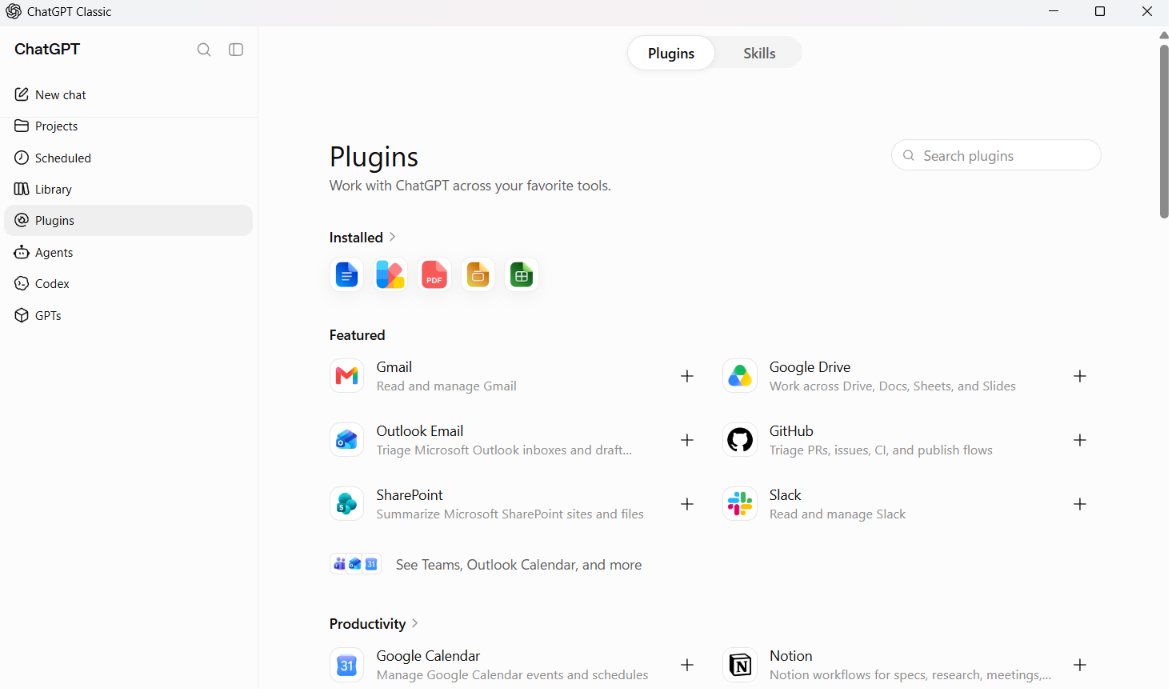
Open the plugin directory from the Plugins entry in the sidebar or from Settings > Plugins, select what you want, click Connect, and complete the OAuth login. Once connected, you call it in a chat with an @ mention.
Listings describe what each plugin can do, and the wording is worth reading: "Read and manage Gmail" is a different proposition from one that only searches. If a Connect button is unavailable or says Disabled by admin, your workspace hasn't enabled that app for your role yet.
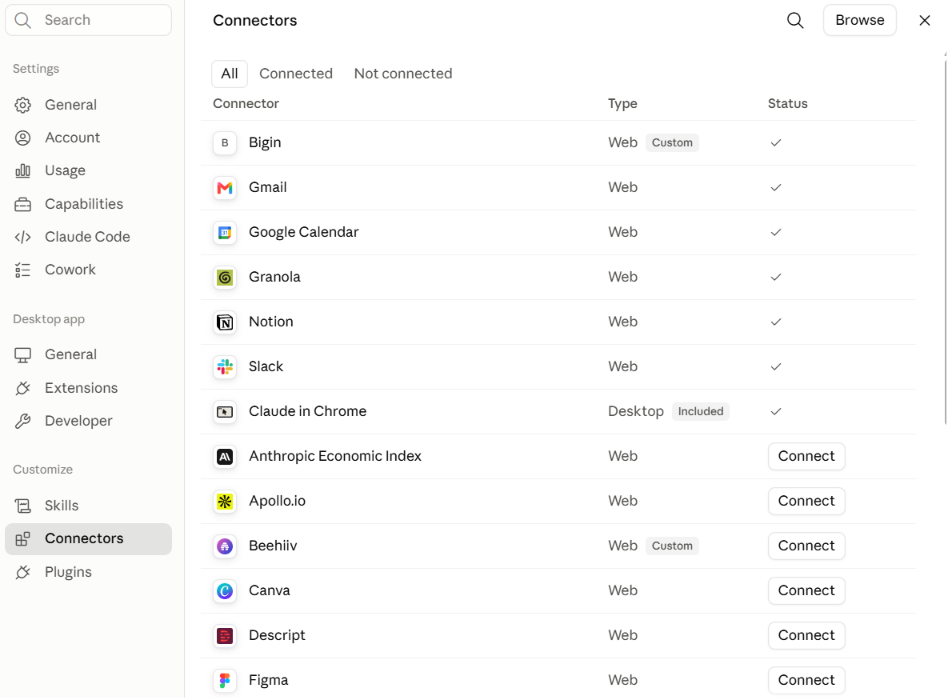
Open Customize > Connectors and you get the full list, with a tick next to anything already connected and a Connect button next to everything else. Click Connect, review what the connector can read and write, and complete the login. Most use OAuth, so it takes about a minute. The Browse button in the corner opens the wider directory if what you need isn't listed.
The Type column tells you where each one runs: web connectors work across Claude, Desktop and mobile, while desktop extensions only run in Claude Desktop. Anything added through an MCP server URL appears tagged Custom. If an action asks you to approve it before running, or refuses outright, that is a permission your Owner has set.
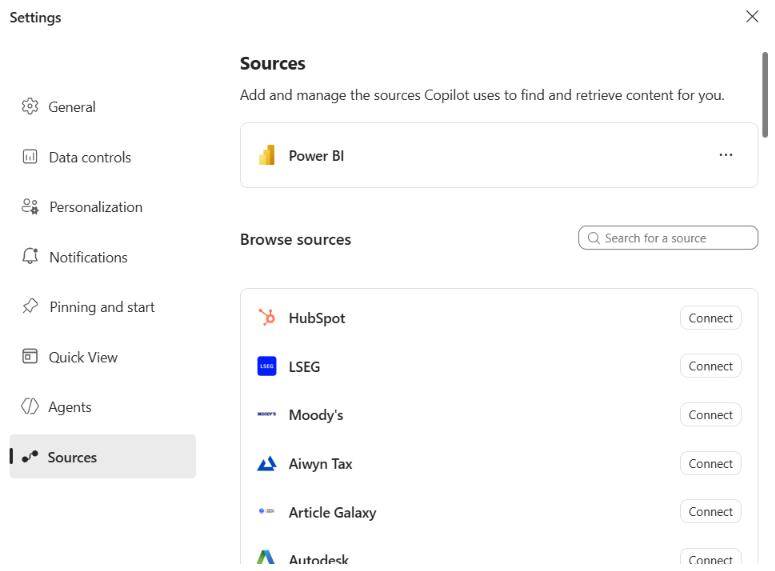
Copilot already reaches your Microsoft 365 content, so mail, calendar, Teams, SharePoint and OneDrive need no setup. Connectors are for the systems outside it: Confluence, ServiceNow, Salesforce, Jira, a file share, an internal wiki.
Open Settings > Sources to see what your organisation has made available, then click Connect on what you need. Some sources an admin configures centrally for everyone, while others an admin enables and you authenticate with your own account, which is why some entries ask you to sign in and others are simply there.
Copilot Chat is read-only by default and won't write back to a connected system unless your organisation has extended it with action connectors or plugins.
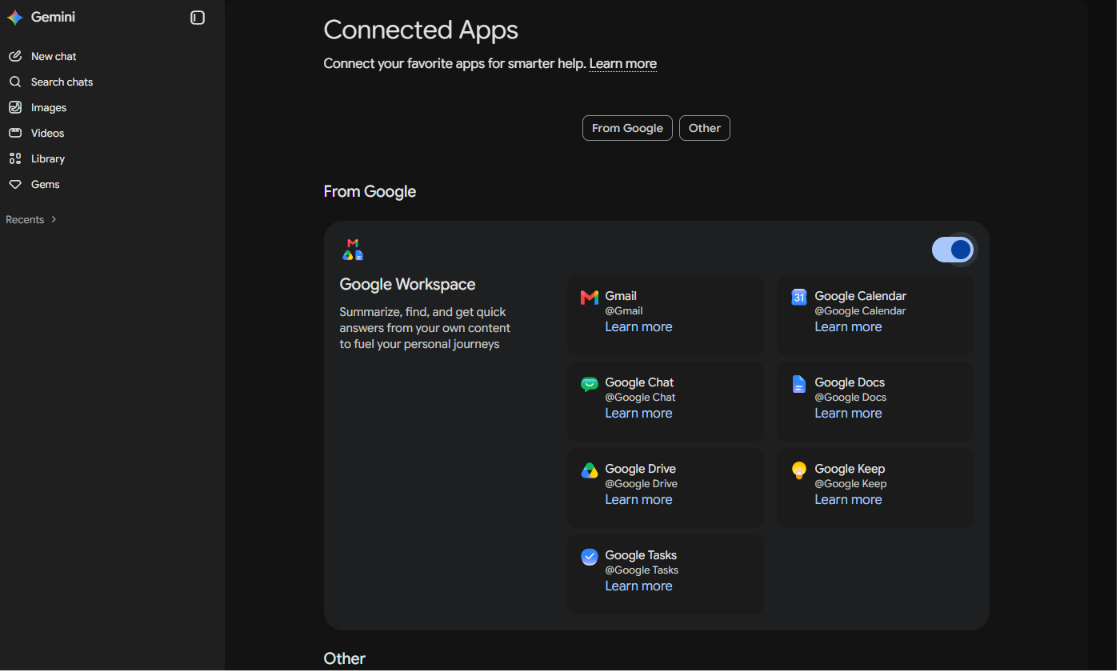
Go to Settings > Connected Apps, then switch on what you want. Apps are grouped under From Google and Other, and the Google Workspace entry is a single toggle covering Gmail, Calendar, Docs, Drive, Keep and Tasks together rather than one switch each.
In a chat, point Gemini at a specific app by typing @ and picking it from the list. If that app isn't connected yet, Gemini either connects it or asks your permission first. One prerequisite catches people out: Keep Activity has to be on, or Connected Apps won't be available in the web app at all.
On a work or school account your admin decides which apps are available. Gemini Enterprise works differently again, with connectors and data stores configured centrally and the permitted actions fixed at that point.
Don't connect everything at once. Pick one team, one recurring task, and one source system, prove it there, then widen. Two examples worth stealing.
The Monday morning catch-up. Instead of scrolling through everything you missed, ask one question.
Look through my email and Slack from the last five working days. What decisions were made that affect the [client name] account, and what is waiting on a response from me? List the source for each point.
You get a short brief with links. You open the two things that actually matter and ignore the rest. This works because it answers a question search cannot: "what decisions were made" is not a keyword.
The client meeting brief. The night before, or ten minutes before, take your pick.
I have a call with [client name] tomorrow at 10. Find the last proposal we sent them, the most recent email thread, and my notes from our previous call. Give me a one-page brief covering where we left off, what they asked for, and what is still unresolved. Show me the sources.
Then open the sources and check the two or three facts you are going to say out loud. That last step takes a minute and is the difference between useful and embarrassing.
Five habits make most of the difference to what you get back.
Connectors are worth setting up. They also come with a few things worth knowing before you go wide.
For admins, most of the work that matters happens before anything is switched on. Run a sharing review on the systems you plan to connect, then publish a short list of what is approved, what needs a request, and who to ask, because people who can't find that answer tend to connect a personal account instead.
Once connectors are live, keep the defaults tight and the picture visible. Read-only unless a team has asked for more, enabled by role rather than across the whole tenant, custom MCP servers reviewed like any other vendor, logging switched on, and authorisations revoked as part of offboarding. Then train people, because most connector value is lost to nobody knowing what has become possible.
Turning on a connector takes a minute. Getting a finance team to change how it closes the month takes training, a few worked examples, and someone answering questions in week two when the novelty wears off.
That second part is what we do at AI Academy. Our corporate training programmes are built for teams that already have the licences and want the adoption. We work with your actual tools and your actual workflows, cover the security habits that keep IT comfortable, and design the training around the outcome you need rather than a fixed syllabus.
Teams finish able to connect the systems they use, build workflows that survive contact with real work, and spot the next opportunity without waiting for a vendor to point it out.
If you're rolling out Claude, ChatGPT, Copilot or Gemini across your organisation and want the adoption to stick, get in touch about corporate training. We'll design a programme around where your teams are today.
Learn More About Corporate Training
Is our company data used to train the model, and how long is it kept?
On training: the major vendors exclude business and enterprise workspace content from model training by default, while consumer tiers may include it unless the user opts out. The data processing agreement for your plan is the document that settles this, not the marketing page.
On retention: content pulled through a connector lands in the conversation, so it follows your normal chat retention settings and any admin controls over history. Connectors that build an index also hold a copy until the connection is removed. Worth asking your vendor what is retained after a chat is deleted, and what happens to the index when a connector is disconnected.
What's the difference between a connector, a plugin, a source and an MCP server?
The first three are product names for the same user-facing thing, one per vendor. MCP is the Model Context Protocol, an open standard Anthropic released in late 2024 that gives AI tools one common way to talk to external systems, and an MCP server is the software that exposes a system through it. Because the protocol is shared, one server can often be published to more than one platform.
Do connectors cost extra, and do they work on a free plan?
Rarely a separate line item, but access is tied to plan tier. Free tiers allow limited or personal-account connections. Anything involving organisation-wide data, admin controls or indexed search sits behind a paid business plan, so the thing to budget for is the licence tier.
Why can't the AI find a file we know exists?
Four usual causes, in the order worth checking. You don't have access to it in the source system, so neither does the AI. The relevant connector isn't switched on for that conversation. The connector indexes content and hasn't synced since the file appeared. Or the search matched on words rather than meaning and the file uses different vocabulary. Naming the source and adding a date range fixes the last one more often than people expect.
Can two people get different answers from the same connector?
Yes, and that's the design working. Each person authenticates with their own account, so the AI sees exactly what that person can see. A manager and a new joiner asking the same question about compensation should get different answers.
Can we build a connector for our own internal system?
Yes. Every major platform supports custom integrations, generally by building an MCP server or using the vendor's connector API. If your system has a usable API, a working prototype is a small project. The larger effort is authentication, permission mapping and maintenance.
What happens if we switch AI tools later?
Directory connectors don't transfer, so people reconnect their accounts on the new platform, which is quick. Anything custom you built on MCP can usually be pointed at the new tool without a rewrite. What doesn't transfer is configuration: role assignments, action permissions and approval settings all need rebuilding.
Do connectors work on mobile?
Mostly yes for using them, with more limits on setting them up. Connections configured on desktop or web generally become available on mobile at next login, while adding new ones on a phone can be restricted or in beta depending on the platform.
Will connectors make responses slower?
A little, and it's usually a good trade. Fetching live data adds a few seconds compared with answering from memory. Indexed sources are quicker to search but can return older content. Where latency genuinely matters, prefer indexed sources and keep the number of active connectors low.


.png)