
For many business professionals, creating custom visuals still means waiting on designers, learning complex software, or settling for generic stock photos. While AI image generators have existed for years, they often required separate tools, technical expertise, or produced results that needed significant refinement for professional use.
On December 16, 2025, OpenAI released ChatGPT Images, powered by the new GPT Image 1.5 model. This update transforms ChatGPT into what OpenAI calls "a creative studio in your pocket"—capable of generating professional business visuals from text descriptions, making precise edits to uploaded photos, and rendering accurate text, all up to 4 times faster than the previous model.
The GPT Image 1.5 model is available to all ChatGPT users (free and paid). The dedicated Images interface in the sidebar features preset styles and trending prompts to inspire your work, making it easy to explore ideas and generate professional visuals. All users can also generate images within chat conversations.
ChatGPT isn't alone in offering conversational AI image generation—Google's Gemini has similar capabilities with its Nano Banana feature, and other platforms are developing comparable approaches. What makes GPT Image 1.5 noteworthy for business users is its integration within the ChatGPT ecosystem many professionals already use daily, combined with specific capabilities that matter for business applications.
The key capabilities that make GPT Image 1.5 particularly effective for business applications:
Precise Editing: Change only what you specify while preserving lighting, composition, and facial features. Adjust the background without losing your subject's expression, or modify colors without repositioning elements.
Improved Text Rendering: Dense infographics, product labels, and event invitations now render with far fewer spelling errors. This capability alone makes GPT Image 1.5 viable for business materials that previous generations couldn't handle.
4x Faster Generation: Images appear in 10-30 seconds instead of a minute or more. This speed enables rapid experimentation—test variations, refine concepts, and explore ideas in real-time rather than waiting for batch renders.
Better Instruction Following: Complex prompts work on the first attempt. Request "a professional headshot with warm lighting and a corporate blue background" and get precisely that—not a reimagined interpretation requiring multiple revisions.
Dedicated Creative Studio: The Images interface in the sidebar features preset prompts, regularly updated filters, and your complete image library—transforming image generation from a chat feature into a full creative workspace.
Integrated Workflow: Generate images directly within your existing ChatGPT conversations without switching apps or platforms. Discuss your project, create supporting visuals, and continue your work—all in one place.
Before diving into specific business applications, it's important to understand what this tool excels at versus where you still need professional designers. ChatGPT Images works through natural language descriptions—you describe what you need, specify colors and layout preferences, and the AI creates professional visuals. The system handles everything from abstract concept visualization to photorealistic product mockups, making it ideal for internal communications, concept exploration, and early-stage materials where speed and clarity matter more than pixel-perfect brand precision.
These capabilities translate into immediate, practical value. We've been using them to create proposal covers, process diagrams, social media graphics, and product mockups in minutes. Here are five proven applications you can implement today.
The Challenge: You're pitching to multiple industries in the same week. Your generic proposal template doesn't resonate with specific audiences. Healthcare clients need to see you understand medical operations, tech companies want innovation signals, and manufacturing firms expect operational excellence.
The Solution: ChatGPT can generate tailored proposal covers that speak directly to each industry's priorities and aesthetic preferences.
Example Prompt:
Create a professional proposal cover design for a healthcare technology solution. Show a modern hospital environment with subtle medical excellence elements: soft-focus medical cross symbols, caring hands imagery, clean lines suggesting organization. Integrate technology elements like digital network patterns representing the tech solution. Use trustworthy healthcare colors: medical blue (#0077C8), clean white, soft gray (#E8E8E8). Premium aesthetic suitable for hospital C-suite executives. Vertical document format. Leave top third clear for client logo and center for proposal title.

Why This Works: The prompt specifies industry context, visual elements, color codes (which dramatically improve consistency), target audience, and practical layout requirements. This level of detail helps the AI understand both the aesthetic and functional needs.
Similar Applications:
Pro Tip: Keep a template of your brand colors in hex codes. Including these in your prompts ensures consistency across all generated images.
The Challenge: Your company achieved carbon neutral certification and you're announcing it on LinkedIn tomorrow. Stock photos of wind turbines feel cliché, your designer is booked solid, and you need something professional that doesn't look like every other "going green" post.
The Solution: Generate custom graphics that communicate your achievement with sophistication and originality.
Example Prompt:
Create a professional LinkedIn post graphic announcing carbon neutral certification. Show abstract, sophisticated representation of sustainability: flowing organic shapes suggesting nature and growth, integrated with modern geometric elements representing business and innovation. Use elevated color palette: deep forest green (#2E7D32), fresh mint (#81C784), clean white, with subtle gold accents (#FFC107) suggesting achievement. Contemporary and premium aesthetic. Horizontal format for LinkedIn feed. Keep left third simple for text overlay announcing the achievement.
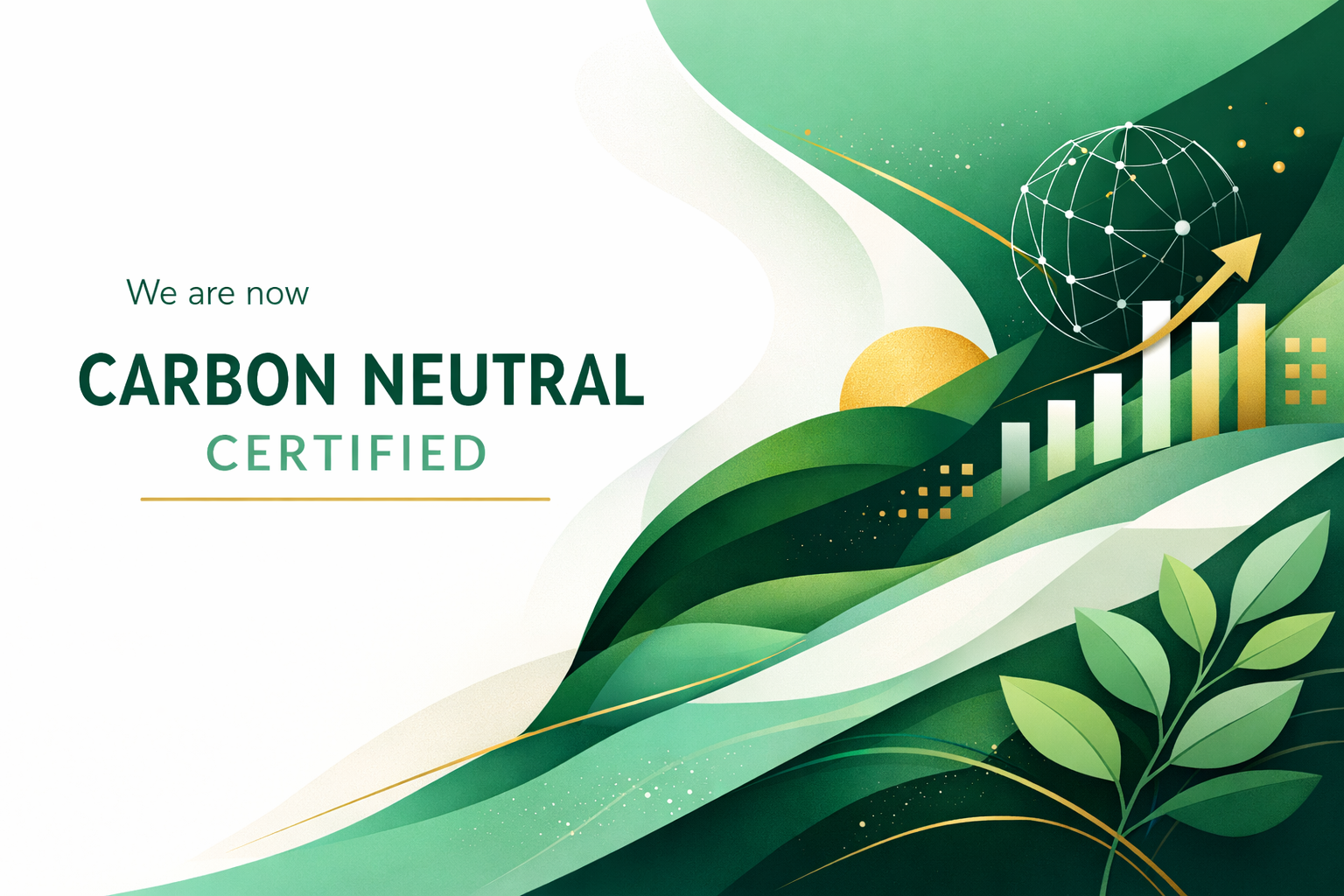
Why This Works: The prompt moves beyond literal interpretation (avoiding cliché imagery) and instead creates an abstract, professional representation. Specifying space for text overlay ensures the visual works as a functional social media asset.
Similar Applications:
Pro Tip: When creating social media graphics, always specify the format (horizontal for LinkedIn/Twitter, square for Instagram) and leave designated space for text overlays.
The Challenge: Your product team is building a new mobile feature. Engineers, designers, and executives need to understand the complete user flow, but everyone visualizes things differently. Verbal explanations lead to misalignment that costs weeks of rework.
The Solution: Create clear, comprehensive user journey maps that provide a single source of truth for all stakeholders.
Example Prompt:
Create a user journey map for mobile expense reporting feature. Show complete flow horizontally: 1) User opens app, taps "New Expense" 2) Takes photo of receipt 3) App extracts data automatically 4) User reviews and confirms 5) Selects category and project 6) Submits for approval 7) Manager receives notification 8) Manager approves/rejects 9) User receives confirmation. Use rounded rectangles for each step connected by arrows. Include decision diamonds where flow branches (e.g., "Data correct?" Yes→Continue, No→Manual edit). Add emotion indicators below key steps: green dot for positive moments, yellow for neutral, red for friction. Clean professional design: primary flow in blue (#2196F3), decision points in gray (#757575).
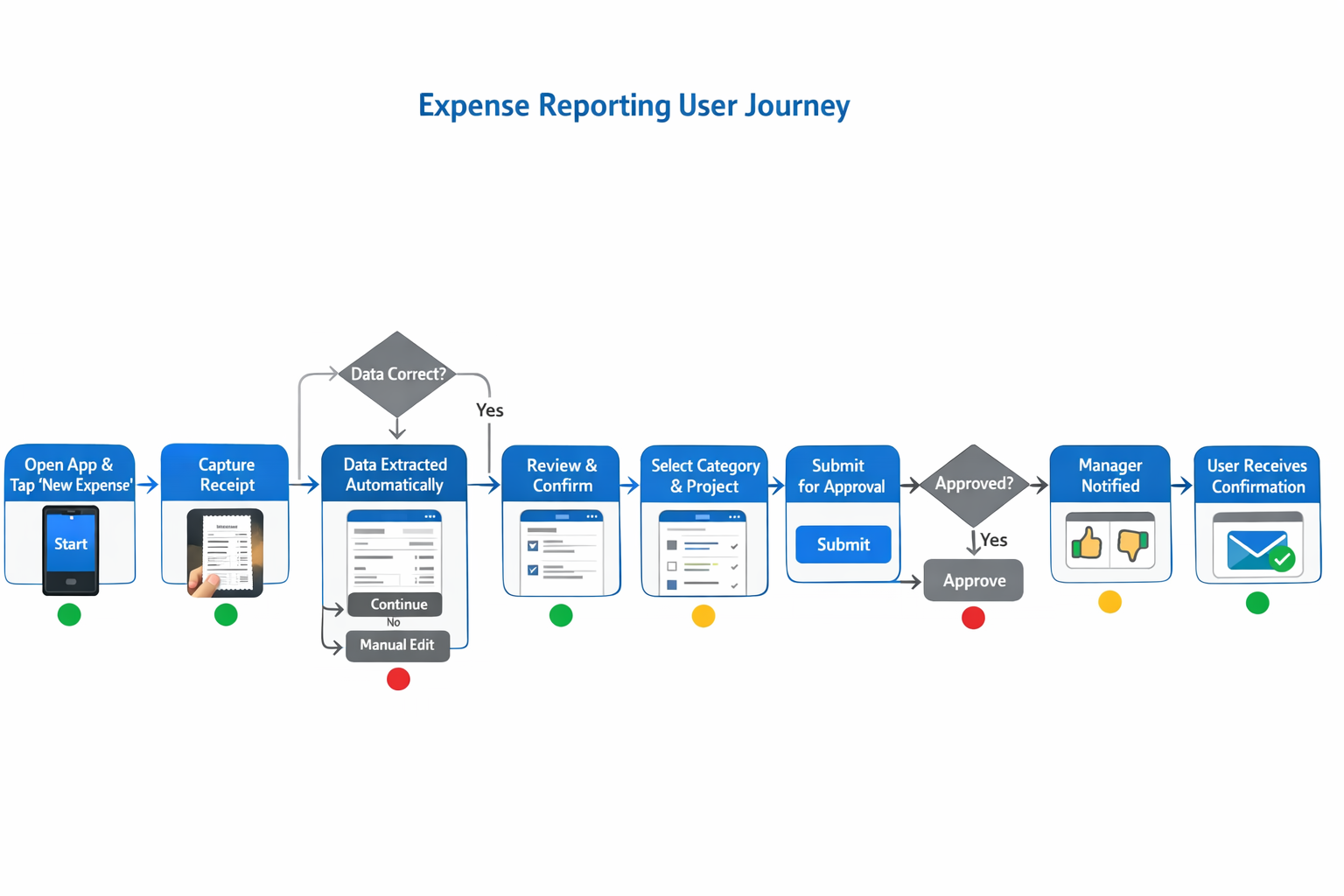
Why This Works: The prompt provides step-by-step detail, specifies visual conventions (shapes for different elements), and includes emotional context through indicators. This creates a comprehensive map that serves as both documentation and alignment tool.
Similar Applications:
Pro Tip: User journey maps work best when you include decision points and emotional indicators. These elements help teams identify potential friction points before development begins.
The Challenge: Performance review season creates anxiety because employees don't understand the timeline or their role at each stage. HR gets flooded with repetitive questions about when things happen and what's expected.
The Solution: Create clear timeline infographics that demystify the process and set expectations.
Example Prompt:
Create a timeline infographic showing the annual performance review process. Display horizontally across 5 stages: Stage 1 "Self-Assessment" (Jan-Feb, employee at laptop icon), Stage 2 "Manager Review" (Feb-March, manager with document icon), Stage 3 "Feedback Meeting" (March, two people talking icon), Stage 4 "Development Planning" (April, growth roadmap icon), Stage 5 "Calibration & Decisions" (May, leadership meeting icon). Connect stages with arrow timeline. Use professional colors: blue (#1976D2) for employee actions, green (#388E3C) for manager actions, purple (#7B1FA2) for HR/leadership steps. Below each stage, include one-line description of what happens and employee's role. Horizontal layout for employee portal and review kickoff emails. Transparent, anxiety-reducing design that demystifies the process and sets clear expectations.

Why This Works: The prompt creates transparency through clear visualization of roles, timing, and expectations. Color coding by role type helps employees quickly understand who does what at each stage.
Similar Applications:
Pro Tip: When creating process timelines, use color coding to distinguish between different actors or types of activities. This visual distinction helps people quickly understand complex processes.
The Challenge: You're presenting new packaging concepts to the board next week. You need something that looks real enough to evaluate seriously, but prototyping would take weeks and cost thousands. Sketches won't convince stakeholders for a go/no-go decision on this investment.
The Solution: Generate photorealistic product mockups that enable informed decision-making without the cost and time of physical prototypes.
Example Prompt:
Create a photorealistic product photography shot of premium skincare packaging. Show three elegant bottles (50ml, 100ml, 150ml sizes) arranged on clean white surface with natural lighting from the side. Frosted glass bottles with minimalist design: simple sans-serif typography in matte black, subtle brand logo, clean lines. Show products with reflection on glossy white surface. Background is soft, slightly out of focus, with subtle cream and beige tones suggesting luxury and naturalness. Lighting creates gentle shadows and highlights on glass, giving depth and dimension. High-end, sophisticated, minimalist aesthetic—similar to premium brands like Aesop or Drunk Elephant. Professional product photography quality suitable for executive presentation.
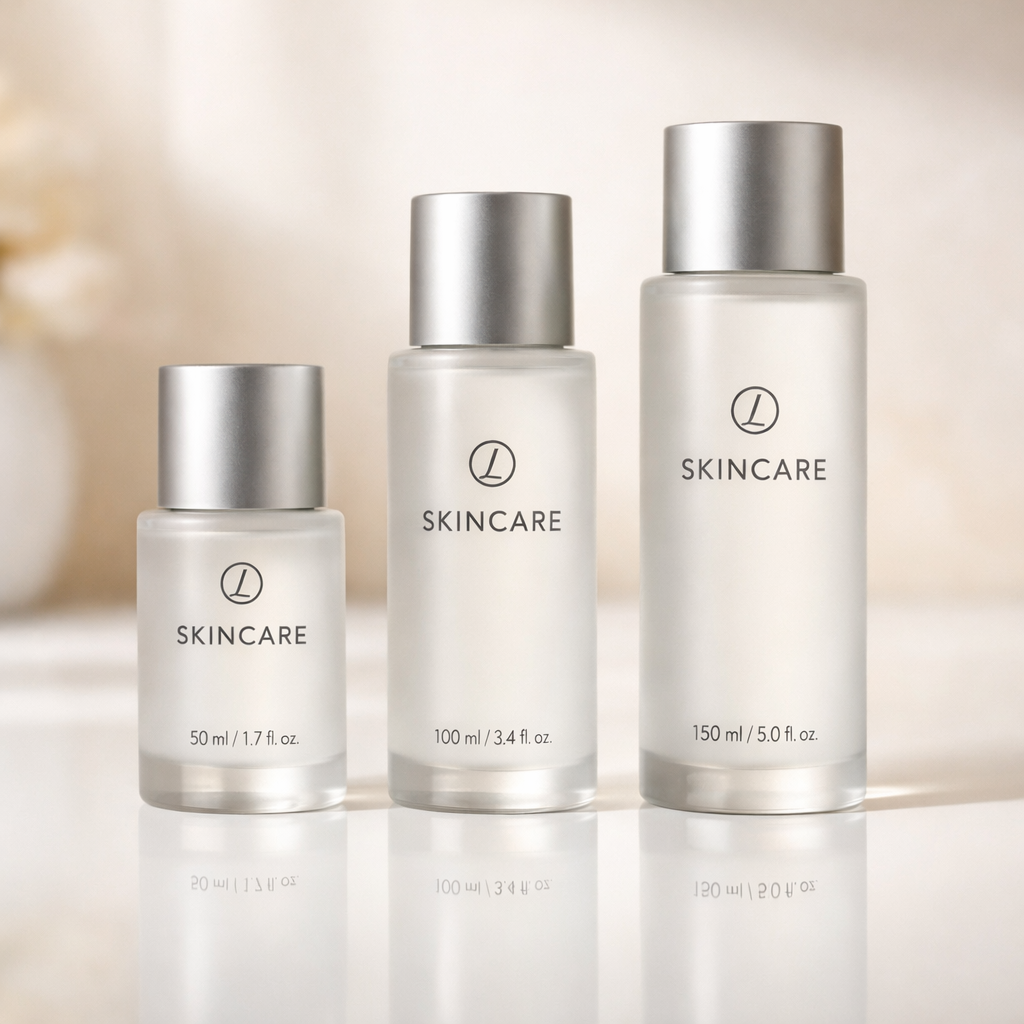
Why This Works: The prompt specifies realistic details (lighting, shadows, reflections) that create believability. Referencing established brands provides aesthetic context without direct copying.
Similar Applications:
Pro Tip: When creating product mockups, reference existing brands that have the aesthetic you're targeting. This helps the AI understand the quality level and style you need.
Not every visual need is appropriate for AI generation. Understanding these boundaries helps you work more efficiently and maintain quality standards.
ChatGPT Images Excels At:
The common thread: these are scenarios where clarity and speed matter more than pixel-perfect brand compliance. They prioritize getting ideas across quickly rather than achieving absolute precision.
You Still Need Professional Designers For:
The Guiding Principle: High stakes + external audience + legal requirements = professional design. Speed + clarity + internal/early-stage work = ChatGPT Images.
This distinction is about using the right tool for the right job. Professional designers bring strategic thinking, brand expertise, and precision that AI can't match. ChatGPT Images removes bottlenecks for routine visual needs, freeing designers to focus on high-value creative work.
Creating images in ChatGPT is easier than ever. You have two options:
Option 1: The Dedicated Images Space
Click on "Images" in the ChatGPT sidebar (available on web and mobile apps). This new creative studio interface includes:
This approach works well when you're exploring ideas or need inspiration for your project.
Option 2: Within a Chat Conversation
Simply ask ChatGPT to create an image during any conversation. This approach works best when you're discussing a project and need visuals to support that specific context.
Regardless of which approach you choose, here's how to create effective results:
Step 1: Identify Your Need
Pick one visual you've been avoiding this week. Maybe it's a presentation cover, a process diagram, or a social media post. Choose something with a clear purpose and audience.
Step 2: Write Your Prompt
Describe what you need. Include:
Step 3: Refine Your Result
The new GPT Image 1.5 follows instructions much more reliably than previous versions, but you can still refine conversationally:
#1E88E5 instead"The model will make only the changes you request while preserving other elements—a significant improvement over previous versions.
Step 4: Finalize and Use
All your images automatically save to your ChatGPT library. Access them through the Images section in the sidebar, where you can view, download, or continue editing previous creations. If you need to add text or make minor adjustments, tools like Canva work well for final touches.
Step 5: Learn and Iterate
Pay attention to what works. Which prompts generated the best results? What refinements were most effective? Build a collection of successful prompts you can reuse and adapt.
As you work with ChatGPT Images, you'll develop prompts that work well for your specific needs. Save these. Create a simple document with your successful prompts, organized by use case:
This library becomes increasingly valuable over time. You'll spend less time crafting prompts and more time generating the visuals you need.
The release of ChatGPT Images came at a critical moment in the AI industry. OpenAI CEO Sam Altman had reportedly declared a "code red" in an internal memo, acknowledging that competitors like Google's Gemini had begun capturing significant market share. The response—GPT Image 1.5 and the redesigned ChatGPT Images interface—demonstrates how competitive pressure drives rapid innovation that benefits users.
ChatGPT's image generation capability represents something larger than just a new tool. It demonstrates how AI can remove traditional bottlenecks and enable faster decision-making across organizations.
In the past, visual communication required either design skills or designer access. This created delays and dependencies. Now, anyone with clear communication skills can generate professional visuals on demand.
This doesn't eliminate the need for professional design—it changes where that expertise gets applied. Instead of waiting on designers for routine visuals, teams can generate these themselves and reserve designer time for high-stakes creative work that requires strategic thinking and brand expertise.
The result is faster iteration, better communication, and more efficient resource allocation across organizations. When a marketing team can prototype five different social media graphics in ten minutes instead of waiting days for designer availability, they can test and refine messaging more quickly. When product teams can generate user journey maps during planning meetings, alignment happens in real-time rather than across multiple revision cycles.
Start with one use case. Generate one visual you need this week using the preset prompts in the Images interface or your own custom description. See how it compares to your previous process in terms of time, cost, and effectiveness.
At AI Academy, we help professionals and teams master practical AI skills like prompt engineering and visual content creation. Our comprehensive training programs combine hands-on learning with expert guidance to ensure you can apply AI effectively in your work from day one.
For organizations looking to build AI capabilities across their teams, we offer customized corporate training that combines practical skills development with your specific business context and challenges.
Explore Corporate Training Options
Who can access ChatGPT Images?
ChatGPT Images (powered by GPT Image 1.5) is available to all ChatGPT users—both free and paid. Free users can generate 2-3 images per day on a rolling 24-hour window, while ChatGPT Plus subscribers ($20/month) receive approximately 50 images per 3-hour period with priority access during peak times. The quality of generated images is identical across both tiers; the difference is only in quantity and generation speed. GPT Image 1.5 is also available via the OpenAI API for developers, and images download in PNG format.
How does GPT Image 1.5 compare to earlier models?
GPT Image 1.5 is the latest in OpenAI's image generation evolution. ChatGPT originally used DALL-E 3 until March 2025, when OpenAI released GPT Image 1 as part of GPT-4o. GPT Image 1.5 improves upon GPT Image 1 with more precise editing, better detail preservation, improved text rendering, 4x faster generation speeds (typically 10-30 seconds instead of 60+ seconds), and fixes for issues like premature cropping and warm color bias. It also offers 20% lower API costs compared to GPT Image 1.
Can I use generated images commercially?
Yes. OpenAI assigns users ownership rights to generated images, allowing commercial use in business presentations, marketing materials, and client deliverables. However, AI-generated images typically cannot be copyrighted without substantial human creative input, outputs may not be unique across users, and OpenAI doesn't warrant against third-party infringement. You're responsible for ensuring your use complies with applicable laws. For high-stakes applications like logos or brand identity, consider adding human creative elements or consulting intellectual property counsel.
How do I achieve consistent brand aesthetics?
Include specific brand colors (in hex code format) in every prompt. Save successful prompts that match your brand aesthetic and reuse them as templates. For critical brand work, use generated images as starting points and work with designers for final execution.
Can ChatGPT edit existing images?
Yes, one of the major improvements in GPT Image 1.5 is its ability to make precise edits to uploaded images. You can upload a photo and request specific changes—like adjusting facial expressions, changing lighting, repositioning objects, or removing elements—and the model will change only what you specify while preserving composition, lighting, and other details. This level of precision was nearly impossible with earlier models that often reinterpreted the entire image with each edit request.
How does ChatGPT Images compare to other AI image generators?
ChatGPT Images is one of several AI image generators available, including Google's Gemini, Midjourney, and Adobe Firefly. Each has different strengths depending on your needs. ChatGPT Images offers tight integration with ChatGPT's conversational interface, strong instruction following, and excellent text rendering. For professionals already using ChatGPT for other work, it provides a seamless addition to existing workflows. Tools like Midjourney may excel for certain artistic styles, while Adobe Firefly offers deep integration with Adobe Creative Cloud. The best choice depends on your specific use case and existing tool ecosystem.
Where can I access the new Images interface?
The dedicated Images interface is in the ChatGPT sidebar on web and mobile. Click "Images" to access preset prompts, filters, and your complete image library. The interface provides a full creative workspace beyond the basic chat functionality.
What improvements were made to text rendering?
GPT Image 1.5 significantly improved text rendering accuracy, legibility, and consistency. The model can now handle dense text, small text, and complex layouts with far fewer spelling errors and formatting issues. This makes it particularly effective for creating infographics, event invitations, product mockups, menus, educational materials, and any visual content that combines images with text.
What should I do if my image doesn't match my vision?
Refine your prompt with more specific details. Add information about composition, lighting, style references, or specific elements to include or exclude. With GPT Image 1.5's improved instruction following, you'll typically get better results on the first attempt, and subsequent refinements will change only what you request while preserving other elements.
What are the current limitations I should know about?
While highly capable, AI image generation may struggle with very specific layouts requiring pixel-perfect precision, complex data visualization requiring exact accuracy, and highly technical or specialized imagery. For these applications, professional designers remain the better choice. GPT Image 1.5 significantly improved many previous limitations, particularly around text rendering and precise editing.


.png)
.png)