
You ask Claude to analyze your quarterly sales data. Instead of a wall of text, a chart appears right inside the conversation, interactive, tailored to your question, ready to explore.
That's exactly what Claude's new visual feature does. It's a small change on the surface, but for business professionals who work with data, processes, or complex decisions, it opens up some genuinely useful possibilities.
This guide breaks down what the feature does, how it differs from Claude's existing tools, and where it's most useful in practice.
Claude can now generate visual content — charts, diagrams, flowcharts, interactive explainers — as part of its reply, without you having to leave the conversation or switch to another tool.
These aren't static images. They're interactive, built in response to the specific question you asked, and they update as the discussion develops. The feature is on by default and available across all Claude plan types.
For example, if you ask Claude to break down quarterly revenue trends, it can generate a chart alongside its explanation. If you ask it to map out a decision-making process, it can produce a diagram. The visual appears in the conversation and updates as the discussion develops.
We asked Claude to show us what types of visuals it can create and here is what we got:
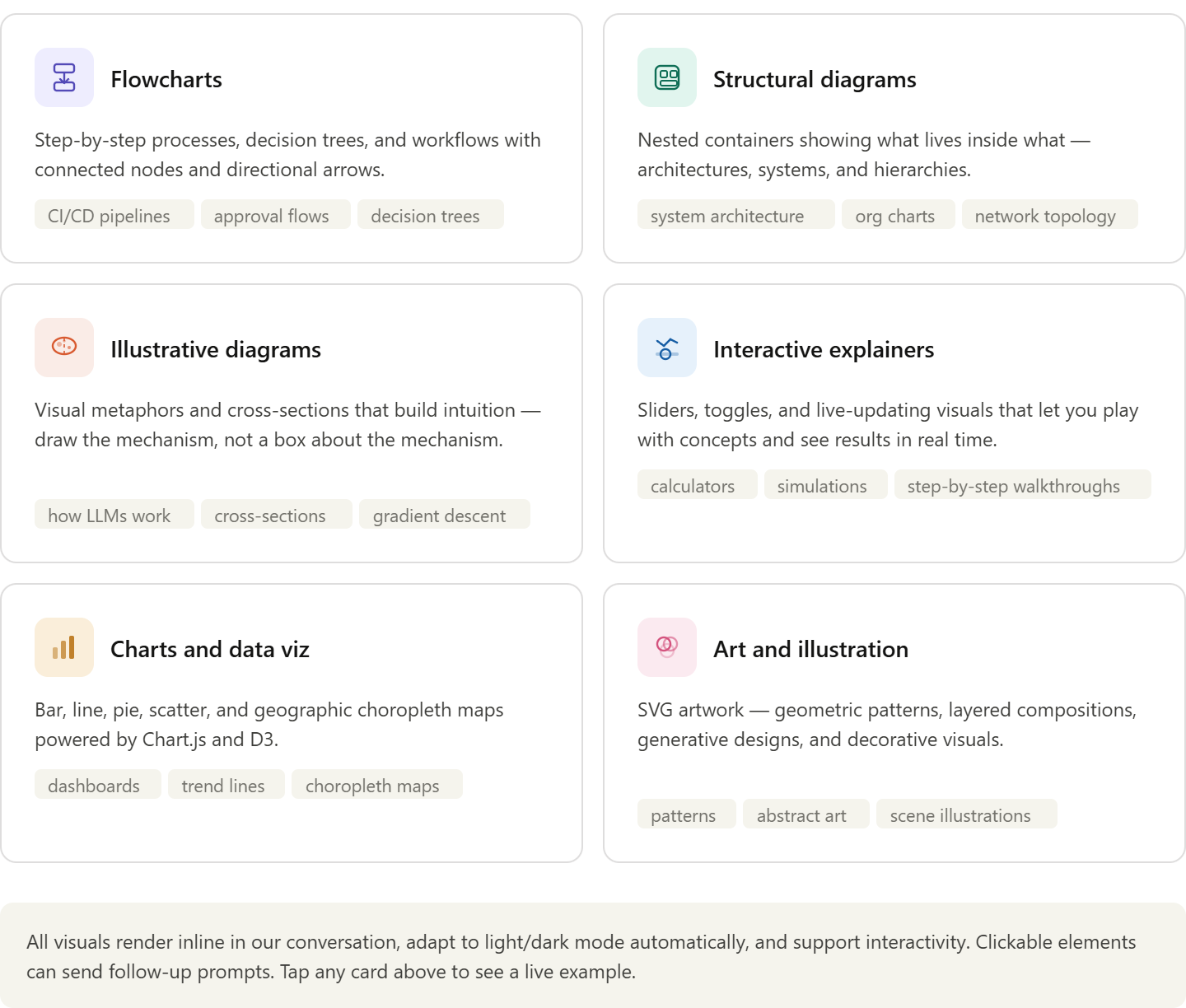
Claude will generally pick an appropriate format on its own, but you can always ask for a specific type directly — "show this as a bar chart" or "draw this as a flowchart" works just fine.
If you've used Claude before, you may be familiar with artifacts — the documents, tools, and files Claude can produce and save in a side panel. Artifacts are permanent outputs: you can download them, share them, and return to them later.
Inline visuals work differently. They appear inside the conversation itself, as part of Claude's response. They're tied to the discussion — they change or disappear as the conversation moves forward. They're not designed to be permanent deliverables.
A simple way to think about it: an artifact can be a document Claude produces for you. An inline visual is more like a diagram Claude sketches during the conversation to support the explanation.
That said, the two features connect. Every inline visual has a small hover menu with three options:
So if something Claude generates mid-conversation turns out to be useful beyond that moment, you can keep it with one click.
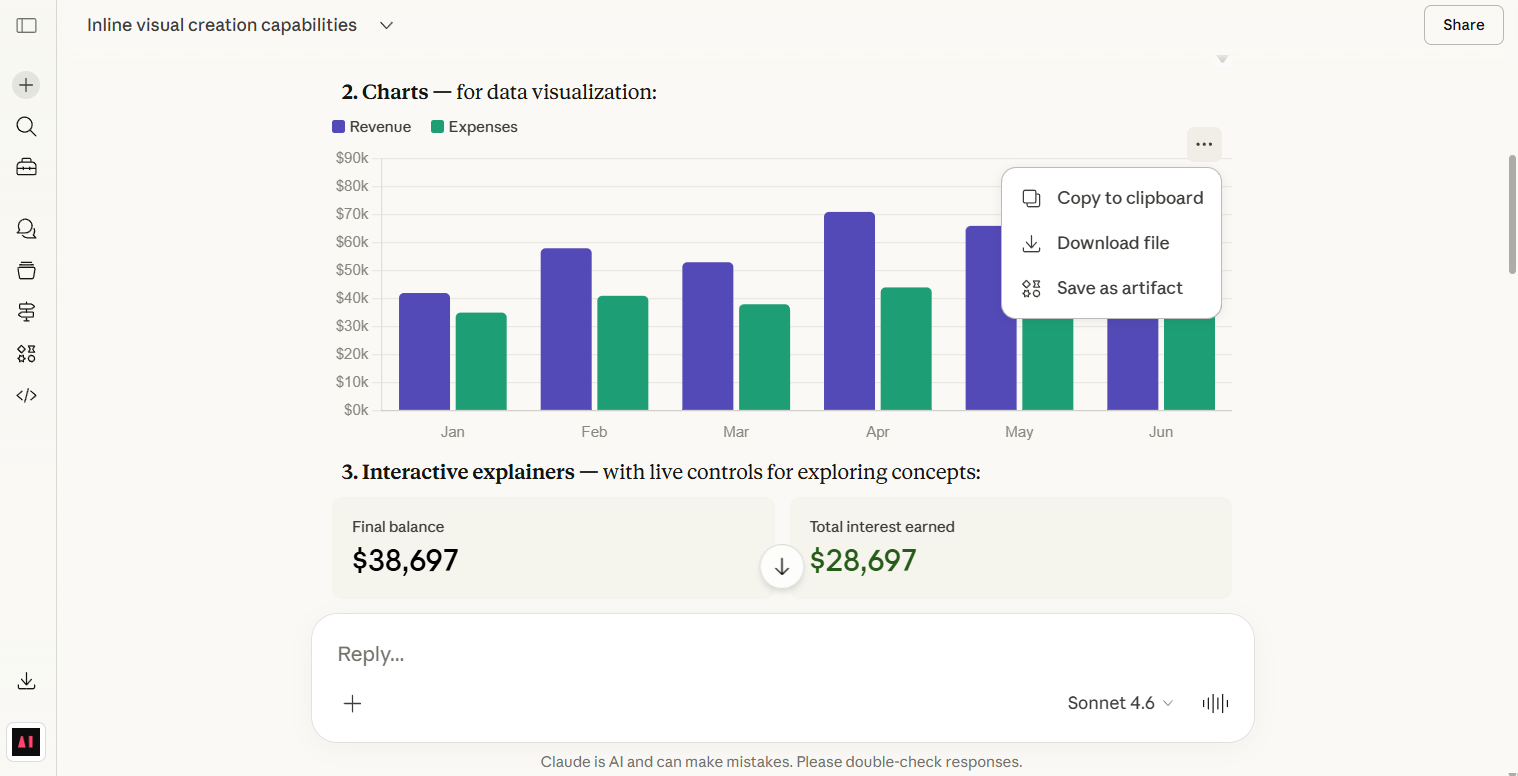
An inline visual inside the conversation with hover menu options
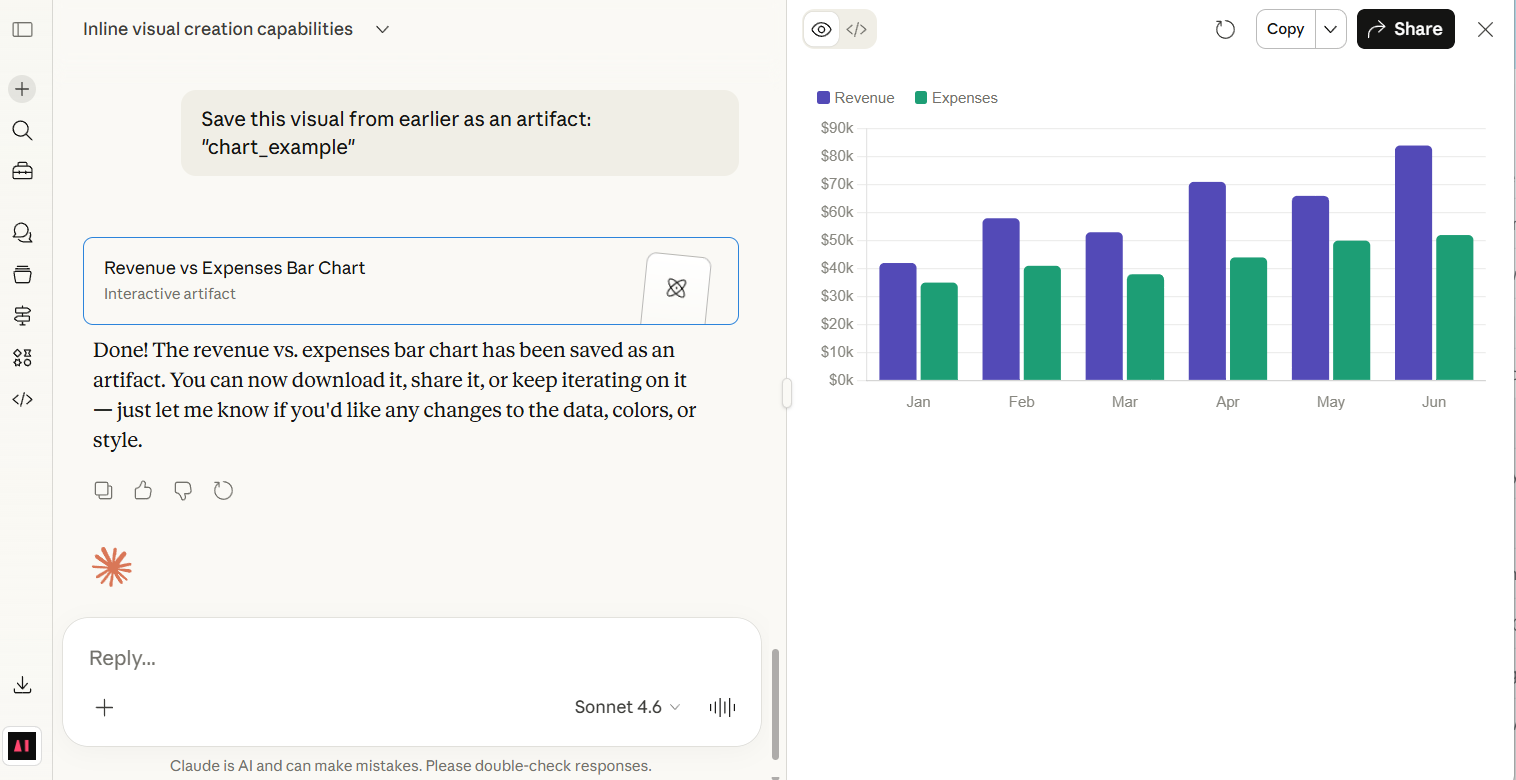
An artifact in the side panel
When you need to make sense of numbers — sales figures, KPIs, survey results — Claude can now generate a chart alongside its analysis. Rather than reading through a paragraph of interpretation, you can look at the data visually and ask follow-up questions from there. It's not a replacement for dedicated BI tools, but it's genuinely useful for quick exploration or when you need to explain data to someone without building a full report first.
Describe a workflow, decision tree, or approval process in plain language, and Claude can produce a diagram of it. This is helpful when communicating structure to a team, working through a process redesign, or simply documenting something quickly without opening a separate tool.
For "what if" questions — how revenue might look under different assumptions, what a project dependency map looks like — interacting with a visual rather than reading about it can make the thinking faster and clearer.
Claude's visuals won't replace a designer or a dedicated tool for polished deliverables. But they can give you a workable first draft of a chart or diagram that you can refine, screenshot, or save as an artifact and take into another tool.
We wanted to see how Claude handles real, structured content — so we gave it the curriculum of our upcoming AI Agent Bootcamp and asked it to map out the full learning journey.
The result: a clear, week-by-week visual showing all 7 weeks of the program — on-demand modules, live sessions, group work, and 1-on-1 coaching calls — laid out in a single diagram. No design tool, no developer, no extra steps. Just a plain-language description of the course structure and one prompt.
.png)
Claude's visualization of the AI Agent Bootcamp learning journey — generated in a single prompt.
What makes this useful beyond just looking good: the same approach works for any structured content you need to communicate quickly — a project roadmap, an onboarding process, a product timeline. Describe it to Claude, and it builds the visual for you.
Having access to a tool like Claude is one thing. Actually integrating it into how your team works day to day is another.That gap — between knowing a tool exists and genuinely adopting it — is what we see most often. People try Claude once or twice, get a useful output, and then go back to how they worked before. The real challenge isn't learning what Claude can do. It's understanding how to integrate tool use into your daily workflow and adopt it consistently enough that it actually changes how you work.AI Academy's corporate training programs are built around exactly that — helping teams move from occasional AI use to genuine integration, tailored to your industry and business context.
Learn more about our Corporate Training
What kinds of visuals can Claude generate?
Claude can produce charts (line, bar, scatter, area), flowcharts, structural diagrams, side-by-side comparisons, step-by-step visual guides, interactive widgets with clickable elements and sliders, and data visualizations from uploaded files like CSVs. Claude decides the format based on what will make the idea land — but you can always request a specific type directly with a phrase like "draw this as a diagram" or "chart this data.”
Do I need any technical skills to use this?
None at all. You ask in plain language — "show this as a chart" or "draw this as a diagram" — and Claude handles the rest. No coding or design knowledge required.
Is this available on free accounts?
Yes. The feature is available across all Claude plan types.
How is this different from building a chart in Excel or PowerPoint?
Claude generates visuals from a conversational description rather than requiring you to input data into a structured tool. It's faster for early-stage exploration and explanation. For precise, polished, or large-scale outputs, a dedicated tool is still the better choice.
Can I save or export an inline visual?
Yes. Hovering over any inline visual reveals a menu with three options: copy as image (copies a static snapshot to your clipboard, ready to paste into a slide or document), download as a file (saves it as an .svg or .html file depending on what Claude built), or save as a permanent artifact.
Is this the same as Claude's artifacts feature?
No. Artifacts are permanent outputs saved in a side panel. Inline visuals appear within the conversation itself. You can convert an inline visual to an artifact using the hover menu if you want to keep it.
Can Claude work with my actual business data?
Yes — you can paste data or describe your numbers in the conversation and Claude will generate visuals from that. For integrations with live data sources, Claude supports connected tools via MCP.
Does this replace tools like Tableau or Power BI?
No. Claude's inline visuals are useful for quick exploration and explanation within a conversation. Dedicated BI tools are better suited for complex, precise, or large-scale data work.
Do these visuals work on mobile?
Not currently. Inline visuals are available on Claude's web and desktop apps only — they don't render on the iOS or Android apps. If you're on mobile and expecting a visual, switch to the desktop or web version.
For complex visuals, does the model choice matter?
Yes. Anthropic recommends using the Opus model for more complex visualization tasks — it handles them better than Sonnet or Haiku. For simple charts and diagrams, any model works fine.
How can AI Academy help my team use Claude more effectively?
Our corporate training programs and AI Academy Membership are both designed to build practical AI skills — including how to get better outputs from tools like Claude and integrate AI into day-to-day work in a way that actually sticks.


.png)