
None of what follows is new to Excel. VLOOKUP has matched two lists for decades. Pivot tables have turned long exports into readable summaries for almost as long. The functions were always sitting there on the ribbon.
The limit was the person in front of the file: whether they knew the syntax, and whether they had twenty minutes to spare. So two exports get reconciled by eye. Capitalisation gets fixed by hand, row after row. Last month's report gets rebuilt from scratch, because working out the formula again takes longer than redoing the work.
Claude for Excel changes who can do that work. It sits in a sidebar next to the open workbook, reads the sheets, writes real formulas, creates new sheets, and tells you what it could not fix. You describe the outcome in plain language.
Treat it as an equaliser for Excel skill. People who never learned the formulas get the result themselves instead of queueing for the one colleague who knows. People who know Excel well stop spending twenty minutes on something they have done a hundred times.
One thing to know before you start. The time comes back on repeated work rather than on clever one-off requests. The report someone rebuilds every month is worth more than anything else here.
Here is what that looks like, task by task.
Claude for Excel is an add-in, available on the Pro, Max, Team and Enterprise plans.
Start by opening Excel and looking at the Home tab. In a lot of companies IT has already deployed the add-in, so Claude is sitting there. Click it, sign in with your work account, and you are done.
If it is not there, three steps:
For a whole team, an admin can deploy it to everyone from the Microsoft 365 admin centre, which saves each person doing this themselves. If two Claude buttons end up on the ribbon, either one works.
Clicking it opens a panel beside the sheet. What is in there:
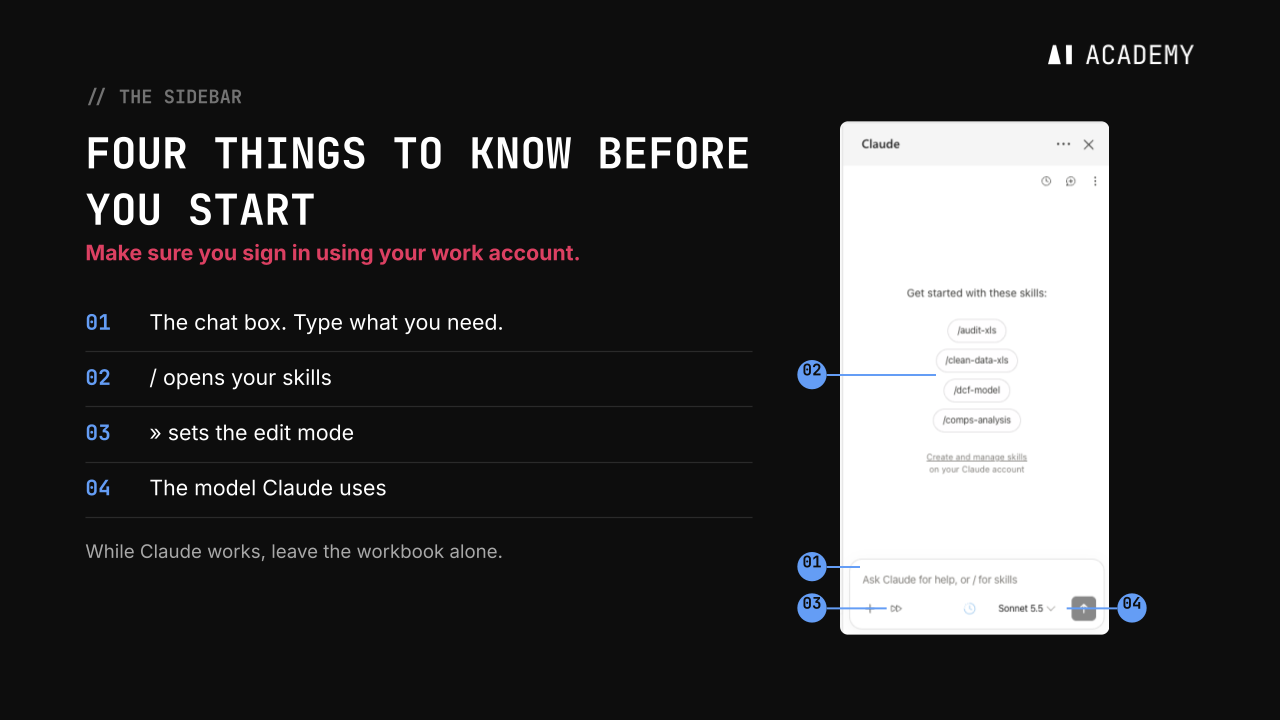
One detail that saves typing: whatever cell or range you have selected shows up in the sidebar, so you can select a block of cells and say "reformat these" without spelling out any references.
Two habits from day one. Work on a copy, especially if the file lives on SharePoint or a shared drive. And while Claude is working, leave the workbook alone. Clicking into cells mid-task can interfere with what it is doing.
Exports arrive messy. Province codes in lowercase, postal codes without spacing, duplicate rows, a company name spelled two ways, a missing email address.
Ask Claude to clean a specific range, and be explicit about four things: what to fix, what to flag, where the result goes, and what to leave alone.
Something like this:
This is our supplier register. Some records have formatting problems, duplicates, and missing or conflicting details. Clean these records. Make formatting consistent in each column and remove only exact duplicates. If you cannot fix something, like a missing detail or two records with the same ID and different information, flag it in a Flag column instead of guessing. Put the result on a new sheet called Clean Copy and leave the Suppliers sheet unchanged. Tell me how many rows went in and how many came out. Use records S001 to S030.
Three parts of that prompt do most of the work.
The Flag column. Turning "bc" into "BC" is the easy part. The real question is what happens to the record with no email address, or the two rows with the same ID and different contacts. Asked to flag, Claude adds a column reading missing email, invalid email, duplicate ID. A cleaning job that guesses is worse than one that leaves a gap, because the guess looks like data.
The row count. Asking how many rows went in and how many came out gives you a one-line check on whether anything vanished.
Where the result goes. If you do not say, Claude cleans the sheet in place. That is fine on a copy and a problem on anything else. Naming a new sheet and saying to leave the original alone takes five words.
Then compare two records against the originals: one it fixed, one it flagged.
Most teams have two lists that are supposed to line up and sometimes do not. Orders and the invoices billed against them. A payroll report and a provider export. A system export and the tracker someone keeps by hand.
Ask Claude to match the two sheets on the shared ID, show only what does not line up, put the result on a new sheet, and use formulas. Name both sheets exactly as they appear in the workbook. When a task spans two tabs, naming them is the cheapest way to stop Claude working on the wrong one.
Asking for formulas rather than pasted text is worth the extra words. You get an IF statement you can click into and read, and the sheet keeps working when the data changes.
What comes back is usually short, and the problems are usually not all the same kind. One order billed for the wrong amount. One order with no invoice against it at all. Explaining why is still your job. The looking is what Claude just saved you.
A pivot table turns a long list into a summary you can read. Three hundred sales rows become net sales by month and region, in a table that fits on one screen. You decide what goes down the side, what goes across the top, and what gets added up.
The menu for building one has put people off for years. In the sidebar you describe it instead, and the more of the layout you specify, the less there is to redo:
The Sales sheet has our sales by month, province and channel. Build a pivot table and a column chart from it. Put the pivot on a new sheet with month in rows, province in columns, sum of net sales as values, and channel as a filter. Give the chart a clear title, month labels and a province legend. Leave the Sales sheet unchanged.
Three hundred rows, a pivot table and a chart, in under a minute.
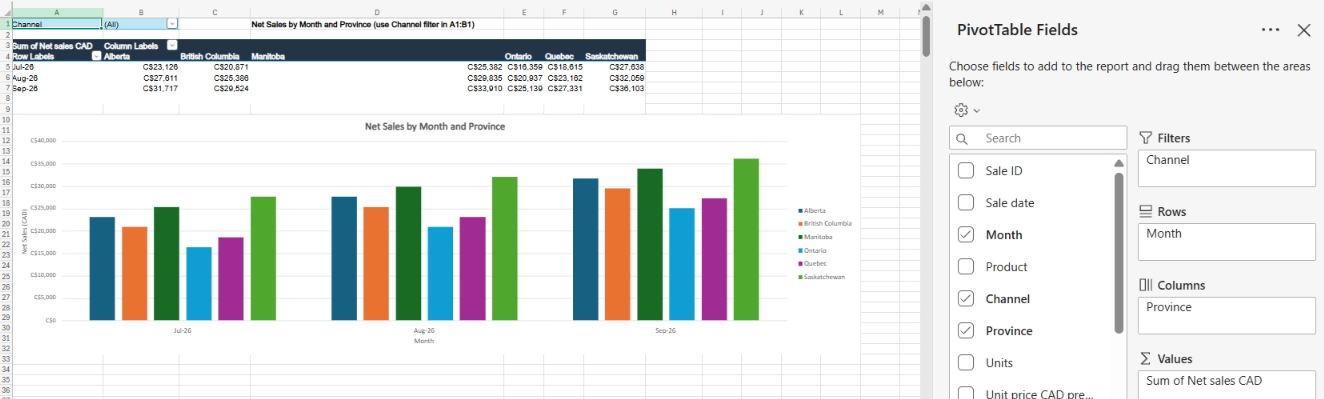
Before anyone uses those numbers, check that the filter is showing everything you expect, then check one total against the source sheet.
Most reports come back every month with a new date range and the same structure.
When Claude has built a report you are happy with, stay in the same conversation and type /skillify. Say what changes each time, and add one instruction worth copying: tell Claude to compare one total against the source sheet and report whether it matches, every time the skill runs. The check becomes part of the recipe instead of something you have to remember.
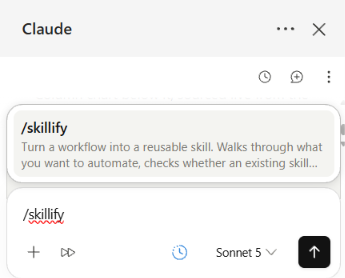
Claude drafts the skill, you review it, and you save it. It lands in the / menu in Excel and in the skills list in your Claude account, so the same skill works in the Claude app on an uploaded file or inside a project, not only in the sidebar.
Next month the whole thing is one line. Type /monthly-sales-report, add “November,” and the report comes back built the same way.
This is the part people underuse. The first build takes a conversation. Every build after that takes a sentence.
Inheriting a file is its own task, and it is the use case where splitting the work in two pays off.
First, ask without editing:
The summary at the top of this sheet shows average resolution hours by category. Some of these numbers are wrong. Check each average against the ticket list below it. For each one that is wrong, tell me in one short sentence what is wrong and what the right number should be. No formulas, no cell references, and do not change anything yet.
What comes back is readable: three of the six averages do not match the list, and here is why. Claude catches the #REF! and #DIV/0! errors, and the average calculated over a column with blanks in it.
Then you decide, and ask it to fix them, including what to do with the edge cases: if a category has no resolved tickets, show no resolved tickets rather than an error.
Claude in Excel can also read a sheet, explain a formula and talk through what looks off without touching a cell, which is usually the safer first move on a file you did not build.
One habit matters more than any prompt. Every time Claude produces something, check one number against the source.
Just one. Pick the figure you would be most embarrassed to get wrong, click the cell, and read the formula it wrote.
That takes about fifteen seconds, and it is the difference between using AI on spreadsheets and hoping it got it right. Claude writes visible formulas rather than pasting static values, which is what makes the check quick.
Part of the checking can be handed back. Ask for row counts in and out on a cleaning job. Tell Claude to compare one total against the source sheet and say whether it matches. Your own spot check still matters. This just means fewer surprises reach it.
Checking is also easier than it used to be. When Claude answers a question about a workbook, the answer carries cell-level citations you can click to jump straight to the cell it came from.
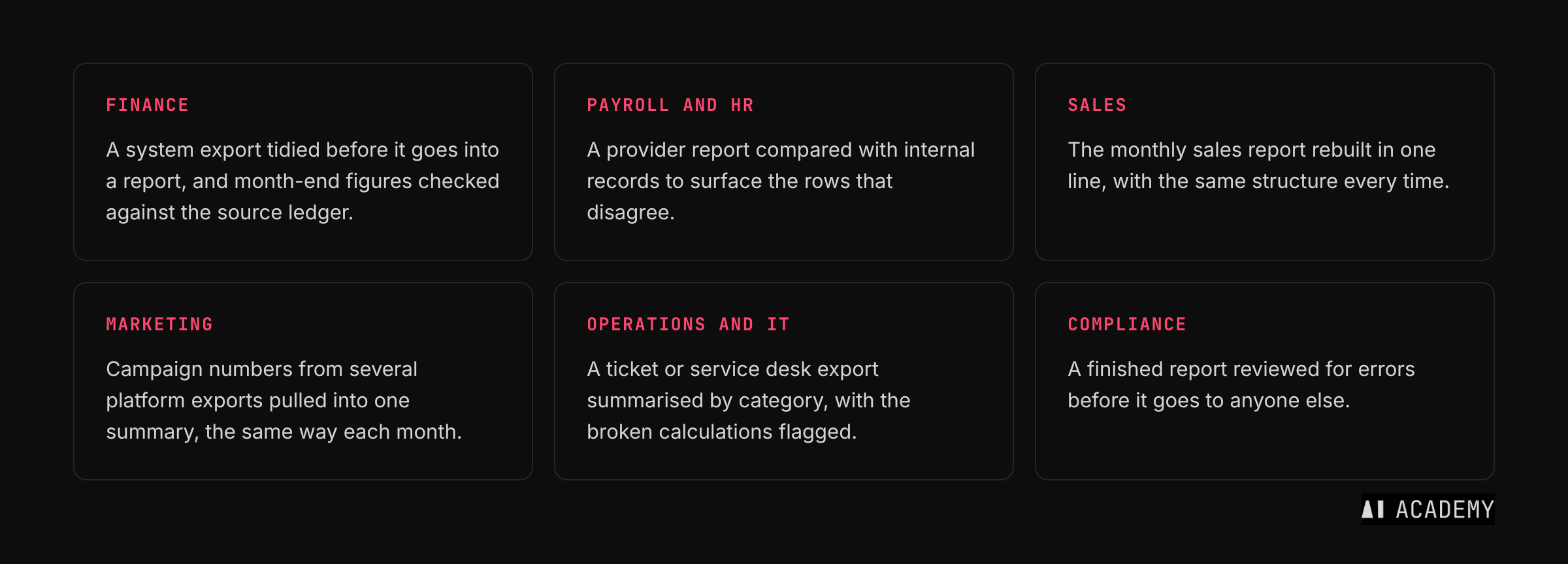
Work on a copy. Especially for shared files. Let Claude work on your copy, check the result, then apply what works to the original.
Keep ranges specific. "Clean rows 31 to 42" produces better results than "clean this sheet," and it makes the output easier to check.
Name the sheets. When a task spans two tabs, use the exact sheet names as they appear in the workbook. It is the cheapest way to stop Claude working on the wrong one.
Start a new chat for a new task. An unrelated request earlier in the same conversation can colour the next answer. The history is still there if you need to go back to it.
Trim very large workbooks. Files with many linked tabs and heavy formulas are harder going. A copy with only the sheets the task needs is faster and more reliable.
Macros and VBA are out of scope. The add-in does not run macros or VBA operations, and data tables are unsupported as well. If that is where your spreadsheet work lives, this is not the tool for that part of it.
Only use it on spreadsheets you trust. A downloaded template, a vendor file or an external data import can carry hidden instructions that try to redirect what Claude does with your data. Anthropic flags this openly. It is another reason to read the confirmation prompts on files that did not come from your own team.
Treat the confirmation prompts as the safety net. Claude warns before it overwrites existing data and asks you to confirm risky operations. Those prompts are the protection, so read them instead of clicking through them, and keep working on a copy.
Review anything that leaves your desk. Claude can be confidently wrong inside a spreadsheet the same way it can be in a document. The drafting can be handed over. The final check should not be.
The teams that save real time with Claude in Excel are the ones where people know which of their own tasks to hand over, and have the habit of checking what comes back.
That is what our corporate training programs are built around: working with teams on the tasks they already do every week.
Learn more about our corporate training
Which plans include Claude for Excel, and how do I install it?
It is available on Pro, Max, Team and Enterprise. Install it yourself from the Claude for Microsoft 365 listing on Microsoft AppSource, then activate it in Excel from Home, Add-ins on Windows or Tools, Add-ins on Mac and sign in. Admins can deploy it to the whole organization from the Microsoft 365 admin centre.
Does it work in Excel for the web and on Mac?
Yes, in Excel for the web and in Microsoft 365 Excel on Windows and Mac. It does not run on Excel 2016 or 2019 perpetual licences, on iPad or on Android. Worth checking before a whole team goes looking for the button.
Does Claude edit my file directly, or does it ask first?
Both are available through the edit mode setting in the sidebar. Whichever you choose, Claude warns you before overwriting existing data and asks you to confirm operations it considers risky.
Can I undo what Claude did?
Changes land in the workbook as ordinary edits and you see them as they are made, so you can catch anything you did not want. Anthropic does not promise a one-click rollback, which is why working on a copy and reviewing changes as they appear is the reliable safety net.
Does Claude write real formulas or paste values?
It works with formulas rather than flattening them, and it keeps formula relationships intact so dependent cells still recalculate. Asking for formulas explicitly is still worth doing on a task like a reconciliation, where you want to read how the match was made.
What happens to data Claude cannot fix?
Ask it to flag rather than guess and it will mark the gaps instead of filling them in. This is the single most useful line to include in any cleaning prompt.
Can Claude handle macros?
No. Macros and VBA operations are not supported, and neither are Excel data tables.
What happens to my spreadsheet data?
When you sign in with a Claude account, the add-in sends your conversations to Anthropic, including what Claude reads from the workbook and any files you attach. Those inputs and outputs are deleted on the backend within 30 days, with some exceptions set out in Anthropic's data retention policy. Chat history sits locally in your browser, and clearing it does not delete what Anthropic holds. Add-in activity is not included in Enterprise audit logs. Anthropic also advises against using it on regulated or highly sensitive models without proper controls, so check with whoever owns your data policy first.
Can I use a skill I built in Excel anywhere else?
Skills live in your Claude account, not in the add-in, so one skill works in the Excel sidebar, in the Claude app on an uploaded file, and inside a project. To build one, type /skillify in the Excel sidebar at the end of a conversation that went well, or use skill-creator in your Claude settings when you are working in the Claude app.
Where should a team start?
Pick one spreadsheet task each person repeats every week or every month, and use Claude for that task only for a few weeks. The habit forms around the task.
Product details in this article were checked against Anthropic's own documentation on 2 November 2026. Features and plan availability change, so check the links before republishing.


