
Most people learned ChatGPT as a chat tool, because from its launch until now, that's what it was. You opened a conversation, asked a question, got an answer, and copied the useful parts into the document, spreadsheet, or email you were actually working on.
That workflow still works, and it's now only part of the story.
With ChatGPT Work, OpenAI is pushing ChatGPT toward something different: an assistant that takes on longer, structured tasks and moves work from idea to finished output. It's OpenAI's answer to Anthropic's Claude Cowork, and part of a wider shift toward AI assistants built to complete work.
For business professionals, the shift is simple. ChatGPT is becoming a place where work actually gets done.
ChatGPT Work is a mode inside ChatGPT for longer, more involved tasks. You switch to it when you want ChatGPT to complete a task instead of answering a single question. Instead of asking one question and getting one answer, you give it an outcome:
It can gather context, plan the task, work across files and connected apps, and produce documents, spreadsheets, presentations, reports, and even simple internal sites, depending on your plan and setup.
You can follow its progress, answer questions while it works, change direction, and approve important actions. That makes it feel less like a chatbot and more like a junior colleague who needs clear direction and review.
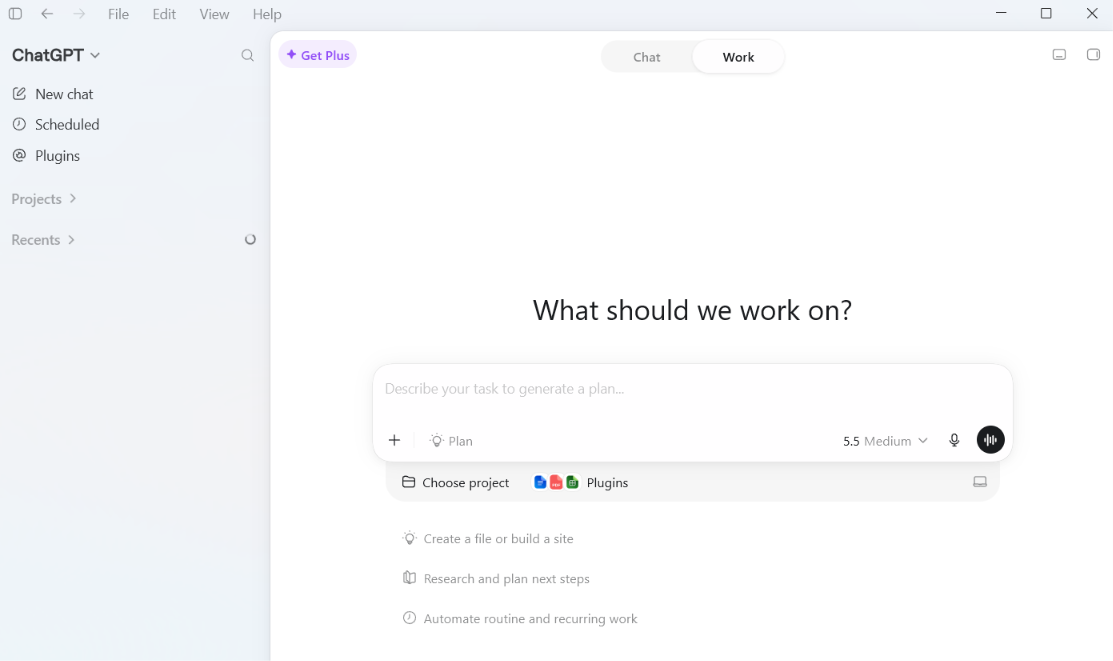
Before ChatGPT Work, most business use looked like this: you opened ChatGPT, explained the task, got an answer, copied the useful parts into another tool, then edited, formatted, and checked the work yourself.
That helped with brainstorming, writing, summarizing, and research. But ChatGPT sat apart from your actual work. It didn't have your files, your project context, or the tools where the output needed to live. So you spent your time as the bridge: copying information in, copying results out, re-explaining context, and turning a good suggestion into a real deliverable.
ChatGPT Work changes the request from "answer this" to "help me complete this."
Instead of "write a summary of this document," you can ask:
"Review this document, pull out the key decisions, turn them into an action plan, create a one-page summary for leadership, and list anything that needs human approval before we send it."
That single request combines reading, reasoning, structuring, drafting, and a quality check. In most business workflows, that middle layer is where time disappears.
Here are the changes that matter most for business teams.
It works across more context. ChatGPT Work can bring in files, connected apps, projects, and past conversations where available. Most business work doesn't start from a blank page. A good proposal depends on the client brief, past emails, pricing, and your company's tone. The more relevant context it can reach, the less time you spend feeding it background one piece at a time.
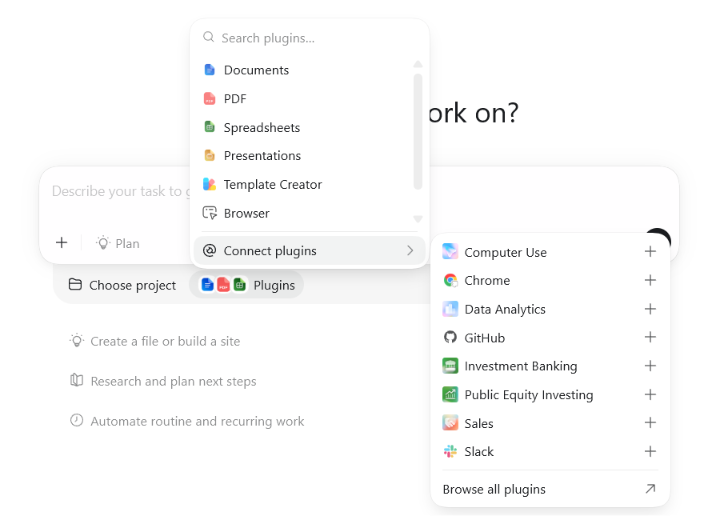
It's built around outputs. Chat mode is strongest in conversation. Work mode aims at finished deliverables: a cleaned-up spreadsheet, a client-facing document, a report, a project plan, a presentation draft. Saving five minutes on a paragraph is nice. Saving two hours on a recurring report is the kind of gain teams notice.
It can turn work into interactive pages. With Sites, ChatGPT Work can turn ideas, plans, and data into simple websites or web apps that are easier to share and revisit. It's part of the shift from static answers toward interactive outputs.
This could work for:
The useful part is that some work is easier to understand when it's interactive than when it sits in a long document or spreadsheet. A project update can become a simple tracker. A training plan can become an interactive learning page. A monthly report can become a dashboard a team can actually review.
Normal review and governance still apply. Before sharing a Site, check whether the data is appropriate, who can access it, whether the information is current, and whether it should stay an internal draft or become a published resource.
It shows you the plan first. With Plan mode, Work maps out its approach before producing anything. It gathers context, asks clarifying questions, and proposes a step-by-step plan, and you review, adjust, or approve it before the work begins.
This helps most when the approach matters as much as the output. Before a market research brief, a training plan, or an executive presentation, you can confirm:
For teams, Plan mode supports a healthier AI habit. People check the direction before time goes into a full deliverable, and the process is easier to review because the steps are visible before work starts.
It runs on desktop, browser, and mobile, and your work carries over. ChatGPT Work runs in more than one place, and your work moves with you. You can switch between Chat and Work, find recent tasks, and pick one back up on another device. That fits how business work actually happens: you might start something on a laptop, review it on your phone, and finish it somewhere else.
Each surface suits a different moment.

The desktop app is the best fit for deeper work, when the task involves files, long documents, spreadsheets, slides, or other desktop apps. On desktop, Work can also use a feature called Computer Use to click, type, and move files in the background while it finishes a task. The browser is good for broad access, when people can't install software, use shared or managed devices, or just need to open ChatGPT quickly. The mobile app is for lighter moments: capturing an idea, reviewing a draft, asking a follow-up, or using voice when typing would slow you down.
Knowing which surface fits which task matters for adoption. If people only treat ChatGPT as a browser tab for quick questions, they miss the workflows where it saves real time. When they match the surface to the work, they use the tool well.
It can run on a schedule. You can set a task to run once, repeat on a schedule, or watch for a change:
Many business processes are simple but repetitive, and easy to forget. Scheduled work helps with exactly that, and it moves AI from something you open to something that runs on a rhythm.

You can talk to it. Voice input is available in Chat and Work on desktop. Many good instructions are easier to speak than to type, especially right after a meeting, which lowers the barrier for managers and operators who don't want to craft perfect prompts.
Simple rule: Chat mode is for thinking, drafting, and quick help. Work mode is for delegating a task that needs context, steps, and a usable output.
Use Chat mode when you need a quick explanation, a brainstorm, a rewrite, a short summary, or a second opinion.
Use Work mode when you need a finished draft, a structured report, analysis across several sources, a presentation or spreadsheet, or a repeatable workflow you can monitor.
This matters for training. If people use Work mode the way they used Chat mode, they'll miss most of the value. The real skill is defining work clearly enough that AI can carry it out, which takes more than writing better prompts.
ChatGPT Work changes the adoption question. The old question was "how can employees use ChatGPT?" The better one now is "which parts of our work can we safely delegate, speed up, or standardize with AI?"
Look for work that is repeated weekly or monthly, based on existing documents or data, time-consuming but not highly strategic, and easy for a human to review.
Good candidates:
These are ordinary tasks, and that's exactly why they're good starting points. Adoption works best when AI removes real friction from work people already do.
ChatGPT Work is capable, and it still needs judgment. A few habits from day one.
Treat outputs as drafts. Even a polished document should be reviewed. Ask it to include its assumptions, open questions, sources used, and recommended human checks. This matters most for anything legal, financial, HR, compliance, or customer-facing.
Be deliberate with connected apps. Access makes ChatGPT Work more useful, and it should be intentional. Before connecting email, calendar, drive, Slack, or SharePoint, know what data it can see, what actions it can take, who approved the connection, and what your AI policy says. The right access beats more access.
Define approval points. AI can prepare the work, and a human should approve the important actions. It can draft a client email, but a person sends it. It can prepare a forecast, but finance verifies the assumptions. That's the operating model: AI on preparation, people on the accountable decisions.
Keep an eye on what it does on your computer. On desktop, Computer Use lets Work click, type, and move files on your behalf. That's useful, and it means the agent is acting directly on your machine. Watch the first runs, keep it away from sensitive files and folders until you trust it, and step in if it heads somewhere it shouldn't.
Don't automate a messy process. A scheduled task can repeat a bad process faster. Before you make a workflow recurring, get clear on what triggers it, what information it uses, what the output should look like, and who reviews it. If you can't explain the workflow to a person, ChatGPT Work will struggle with it too.
If your team has access, don't start with your most sensitive workflow. Start with one recurring task that's useful, low-risk, and easy to review.
"Every Friday, draft a weekly team update. Use the project notes, meeting summaries, and task list. Organize it into progress, blockers, decisions needed, and priorities for next week. Add a 'Needs human review' section at the end."
Run it for a month and track three things: how much time it saved, how much editing the output needed, and whether the team used it again. Those questions tell you more than any debate about whether AI is impressive. The goal is to find where it reliably helps your team.
ChatGPT Work is part of the move from AI chatbots to AI agents. Humans stay in the process, and the role changes. People spend less time doing every step and more time on the skills that direct the work well:
Those are business skills as much as technical ones. It's why AI training for teams can't stop at "here are ten useful prompts." Prompts help. The bigger skill is turning a messy piece of work into a clear, reviewable, AI-assisted process.
Giving people access is the first step. The value comes when teams know which tasks to use it for, how to give it the right context, how to review outputs, and how to build repeatable workflows safely.
We help business teams move from experiments to real adoption. Our training is built for professionals who want to use ChatGPT Work in real business workflows, through hands-on practice.
See the ChatGPT Work training →
How is ChatGPT's Work mode different from Chat mode?
Chat mode is best for quick questions, brainstorming, writing help, and conversation. Work mode is built for longer tasks that may involve several steps, files, connected apps, and finished outputs.
Do business professionals need technical skills to use ChatGPT Work?
No. The main skill is describing the task clearly: the context, the outcome you want, the audience, the constraints, and how you'll review it. Technical skills help for some workflows, but they aren't required for everyday business use.
Can ChatGPT Work create documents, spreadsheets, and presentations?
Yes, depending on your plan, workspace settings, connected tools, and the task. It's built to help produce finished work such as documents, reports, spreadsheets, presentations, and simple sites.
Where is ChatGPT Work available?
According to OpenAI's current public information, ChatGPT Work is on the macOS and Windows desktop app for all plans, including Free. On web and mobile it's available on paid plans such as Plus, Pro, Business, Enterprise, and Edu. Availability can still depend on region, rollout timing, workspace settings, and admin controls, so Business, Enterprise, and Edu users should check whether their organization has turned it on.
Should employees use the desktop app, browser, or mobile app?
It depends on the task. Desktop is best for deeper work with files and applications, the browser for easy access with nothing to install, and mobile for capture, review, voice, and follow-up.
Is ChatGPT Work safe for company data?
Business, Enterprise, and Edu workspaces include business data protections, and safety also depends on your settings, connected apps, permissions, and internal policy. Check what ChatGPT Work can access before using it with sensitive information.
What is the best first use case?
A recurring, low-risk task that's easy to review. Weekly updates, meeting follow-ups, research briefs, customer feedback summaries, and training material drafts are good starting points.
Does ChatGPT Work replace human review?
No. In business settings, outputs should be treated as drafts. Human review matters most for sensitive, strategic, legal, financial, HR, compliance, and customer-facing work.
What is Codex, and do business professionals need it?
Codex is a separate mode in the desktop app, aimed at software development: working with code, repositories, tests, and developer tools. For most business professionals, it's only relevant if your role involves technical projects or you work closely with product, data, or engineering teams. For everyday business work, Chat and Work modes are the ones you'll use.


.png)