
Most professionals use AI the same way every day. They open Gemini or ChatGPT, type out the same context, explain their role, describe what they need, and hit send. Then they do it all over again tomorrow.
That's a lot of repetition for a tool that's supposed to save you time.
This idea, a persistent, customized AI assistant you configure once and reuse, is something several major AI platforms have tackled in their own way. OpenAI has Custom GPTs, which let ChatGPT users build specialized versions of the model with their own instructions and knowledge. Anthropic has Claude Projects, which work similarly, giving Claude a memory of your context across conversations. Microsoft takes a more enterprise-focused approach with Copilot Studio, a low-code platform for building custom AI agents, though it's more of a developer and IT tool than something you'd set up in five minutes yourself.
Each platform has its own take on the concept. This article focuses specifically on Gemini Gems, Google's version, and one of the most accessible for everyday business users.
Instead of re-explaining yourself every time, you build a customized AI expert once, with your context, your style, your specific instructions, and reuse it with a single click. It's the difference between briefing a new contractor every morning and having a trusted colleague who already knows what you need.
Here's what you need to know to get started.
Gems are customized versions of Gemini that remember your instructions and preferences across conversations. When you chat with a Gem, it already knows your role, your goals, and how you like to work, so every response is tailored to you from the very first message.
You can think of it like building your own team of specialized AI assistants. One Gem for writing. Another for data analysis. Another for customer communications. Each one ready to go, no briefing required.
Gems are available on the Gemini web app and mobile app, and they sync automatically across both. They're accessible to users with personal Google accounts (13+), and are also available through Gemini for Google Workspace, making them a natural fit for business environments.
Getting started is simpler than it sounds:
That's it. Your Gem is ready to use.
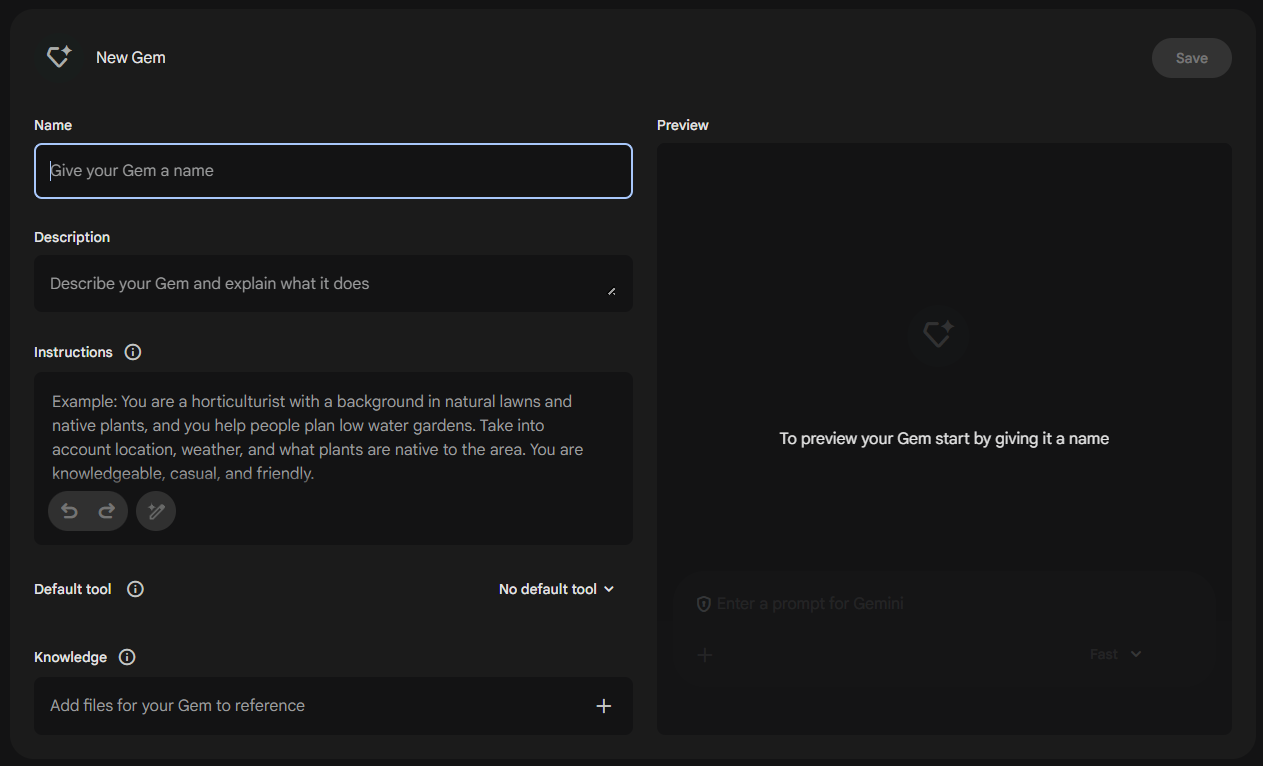
A few things worth knowing: when creating a Gem you can also assign a Default tool — choosing between Deep Research, Create images, Canvas, or Guided Learning. This pre-configures the Gem to always use that tool without you having to select it each time. A visual marketing Gem pre-set to "Create images," for example, or a research Gem pre-set to "Deep Research," will jump straight into the right mode the moment you start a conversation.
You can also upload files to give your Gem additional context—useful if you want it to reference a specific document, style guide, or knowledge base. If your files live in Google Drive, you can connect them directly, and the Gem will always pull the most recent version automatically.
If you're not sure how to write strong instructions, Gemini can help. There's a built-in magic wand icon that rewrites and expands your instructions into something more comprehensive. It's a great way to learn what good Gem prompts look like, and you can always edit or undo from there.
Don't want to build from scratch? Gemini offers several premade Gems you can use right away: Brainstormer, Career guide, Coding partner, Learning coach, and Writing editor. These are available directly in your Gems panel.
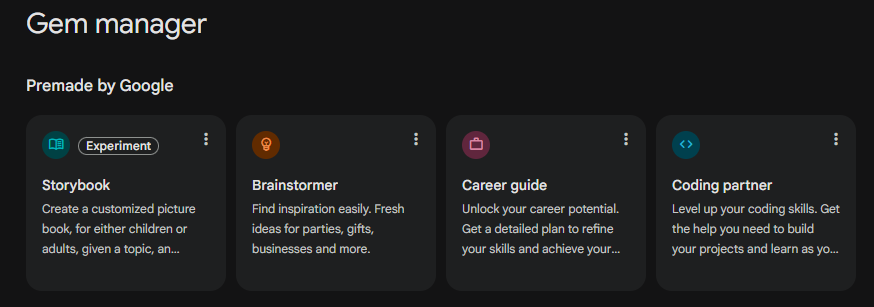
If one of these is close to what you need but not quite right, you can make a copy and customize it—no starting from scratch required.
Most professionals spend a significant chunk of their day on emails. A communication Gem can handle the heavy lifting.
Set it up with instructions like: "You are a professional communication assistant. I work in [your role] at [your company]. Help me draft emails, review my writing for clarity and tone, and simplify long messages. My writing tends to be too formal—help me sound more direct and human."
Once it's built, you paste in a draft and the Gem instantly edits it to match your style. Or you describe what you need to say and it writes the first version for you. No re-explaining your tone, your audience, or your preferences every time.
Bonus: Upload your company's communication guidelines or brand voice document to the Gem's knowledge base. Every email it helps you with will automatically reflect those standards.
Going into a client meeting, a job interview, or a difficult conversation? A research Gem can help you prepare fast.
Instruction example: "You are a research and preparation assistant. When I give you a topic, a company, or a person's name, help me quickly understand the key facts, identify the right questions to ask, and summarize what I need to know. Keep it concise and actionable—bullet points when useful, no fluff."
Use it before sales calls, board meetings, performance reviews, or any situation where you need to walk in informed. You can also use it to practice—ask the Gem to role-play as a skeptical client or a tough interviewer so you can rehearse your responses before the real thing.
Long reports, dense PDFs, sprawling spreadsheet data—professionals deal with a lot of information that needs to become decisions fast.
A summarizer Gem cuts through it: "You are a business analyst assistant. When I share a document or data, summarize the key takeaways in plain language, flag any risks or important numbers, and tell me what action I should consider. Assume I'm time-poor and need the essential points only."
Upload a report, paste in data, or drop in a link—and get a sharp, actionable summary in seconds. No more reading 30 pages to find the three paragraphs that matter.
Not every Gem serves every role equally. Here's a quick reference to spark ideas for your own:
Marketing & Content
Brand voice editor · Campaign brainstormer · Visual content creator
Sales
Prospect researcher · Objection coach · Proposal drafter
Managers & Team Leaders
Performance review writer · Meeting agenda builder · Decision advisor
Finance & Operations
Data summarizer · Process documentation writer · Market research summarizer
HR & People Teams
Job description writer · Interview question builder · Onboarding guide creator
Customer Success
Account health researcher · Churn risk advisor · QBR prep assistant
Product Managers
User story writer · Competitor deep researcher · Feedback synthesizer
Consultants & Advisors
Proposal builder · Industry deep researcher · Presentation coach
Be specific with your instructions. The more context you give a Gem upfront, the less you'll need to clarify later. Include your role, your audience, your preferred tone, and any non-negotiables.
Build Gems for repetitive tasks first. If you're rewriting the same type of prompt every week, that's a Gem waiting to be built. Start there.
Add files to the knowledge base. Style guides, company FAQs, product documentation—anything your Gem should know, upload it. This is where Gems go from useful to genuinely powerful.
Set a default tool. When building a Gem, assign the tool that matches its purpose — "Create images" for a visual content Gem, "Deep Research" for a research Gem. It removes an extra step every time and keeps the Gem focused on what it's built for.
Pin your most-used Gems. In the Gems panel, you can pin favorites so they're always at the top. Keep your daily-use Gems one click away.
Share Gems with your team. You can share a Gem so colleagues can use it too—useful for standardizing communication styles or onboarding workflows across a team.
Gems reward people who are willing to spend 10 minutes setting something up once, to save hours every week going forward. That's exactly the mindset of a maven and doer.
Start with the use case that costs you the most time—email, research, or document review—and build a Gem around it. Refine it as you go. Add it to your daily workflow.
That's how AI stops being a tool you occasionally open and starts becoming a real part of how you work.
Want to learn how to build AI tools like Gems into a complete professional workflow? The AI Academy Membership covers practical AI skills you can apply from day one—including our 7-week AI Agent Bootcamp, expert-led sessions, and one-on-one coaching.
Learn More About AI Academy Membership
What is a Gemini Gem?
A Gem is a customized version of Gemini that remembers your specific instructions and preferences. Instead of re-explaining your context each time, you set it up once and the Gem applies your guidelines to every conversation automatically.
Who can use Gems?
Gems are available to users with a personal Google account (age 13 or older). They're also available through Gemini for Google Workspace for business and enterprise users.
Do I need to know how to code to create a Gem?
Not at all. Creating a Gem is as simple as writing a text description of what you want the AI to do. Gemini also has a built-in feature that can expand your rough instructions into more comprehensive ones automatically.
Can I share a Gem with my team?
Yes. You can share Gems with colleagues. When someone opens a shared Gem and interacts with it, it gets added to their own Gem manager so they can use it independently.
What kinds of files can I add to a Gem's knowledge base?
You can upload files directly from your device or connect files from Google Drive. If you connect a Google Drive file, the Gem will always use the most up-to-date version automatically.
Can I edit a Gem after I've created it?
Yes, at any time. Go to Explore Gems, find the Gem you want to change, and click Edit. You can update instructions, add or remove files, and rename the Gem.
Can I use Gems on my phone?
Yes. Gems created in the Gemini web app automatically appear in the Gemini mobile app as well, so you can use them wherever you work.
What's the difference between a premade Gem and a custom one?
Premade Gems (like the Writing editor or Career guide) are built by Google as starting points. Custom Gems are ones you build yourself with specific instructions tailored to your role and workflow. You can also copy a premade Gem and customize it.
How is a Gem different from just using Gemini normally?
In a regular Gemini chat, you have to provide context and instructions every time you start a new conversation. A Gem stores all of that permanently, so your preferences, tone, and guidelines are applied from the very first message—every single time.
Are there any limitations to be aware of?
Gems can't currently be used with Gemini Live. Some experimental Gems are only available in English through the web app. As with all AI tools, it's good practice to review outputs before relying on them for important decisions.


.png)