
Most people use Microsoft Copilot through the chat. You type a prompt, refine it, go back and forth until you get what you need. That works, and for simple one-off tasks it's usually the right approach.
But chat has two real limitations. It has no memory, so you re-explain context every time you start a new conversation. And it resets completely between sessions, so there's no persistent workspace for ongoing projects. There's also a practical ceiling: very long conversations hit a context window limit, meaning the AI can start losing track of earlier parts of the exchange. For that kind of work, chat costs more time and effort than it should.
Copilot has three tools built specifically for those situations: agents that automate repeatable tasks, Notebooks that keep your project documents in one persistent workspace, and the Researcher Agent that produces full research reports in minutes. Each one solves a different problem. Knowing when to reach for which one is what separates people who save a few minutes a day from those who genuinely change how they work.
This guide walks through each feature, then gives you a decision framework you can apply right away.
A Notebook is exactly what the name suggests: a dedicated workspace where you upload the documents relevant to a specific project, and Copilot answers questions based only on those documents.
No web results. No outside data. Just your materials.
That's actually the point. When you're preparing for a tender, onboarding to a new account, or managing a long-running project, you don't want Copilot pulling in random web content. You want answers that are grounded in the actual documents at hand.
What you can do in a Notebook:
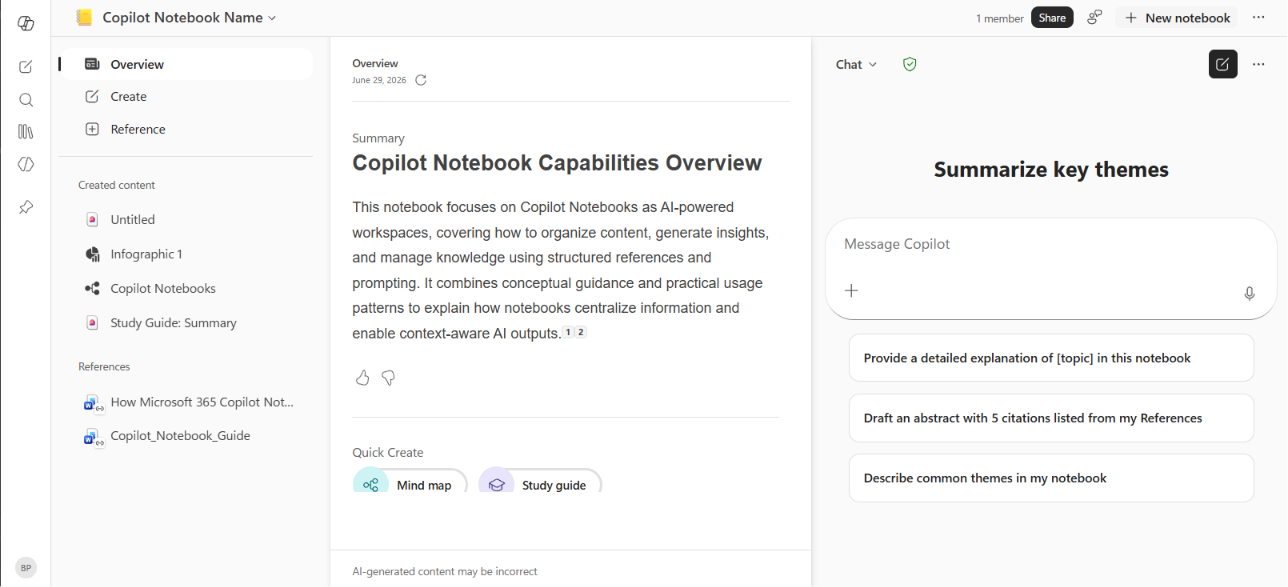
You can keep adding documents to a Notebook as a project evolves. Share it with colleagues so they can work in the same space. Come back to it weeks later and pick up exactly where you left off.
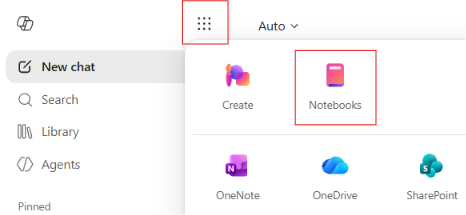
How to find it: Copilot → Nine-dot menu → Notebooks. You can star it as a favorite for faster access.
Supported file types: .docx, .pptx, .xlsx, .pdf, .loop, saved Copilot Pages and OneNote pages
Best for: Projects that span multiple documents and require multiple interactions over time. Tender preparation, account onboarding, ongoing research, meeting prep where the source material is specific and fixed.
Not ideal for: Tasks that require web data, or simple one-off questions where there's nothing to upload.
If the Notebooks handle specific situations, custom agents handle something different: tasks your team does repeatedly, where the input format is predictable and the process is consistent.
Think of an agent as a specialist with a fixed job. You build it once, give it instructions, and then anyone on your team can use it without having to re-explain the context every time. It's also a way to share expertise across a team — instead of the same person answering the same questions repeatedly, the agent does it.
When to build an agent:
When not to build an agent:
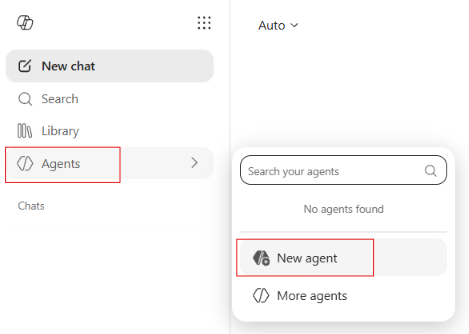
Building an agent: Agents can be created directly inside Copilot with no coding required. You give it a name, write its instructions, connect data sources if needed, and share it with your team.
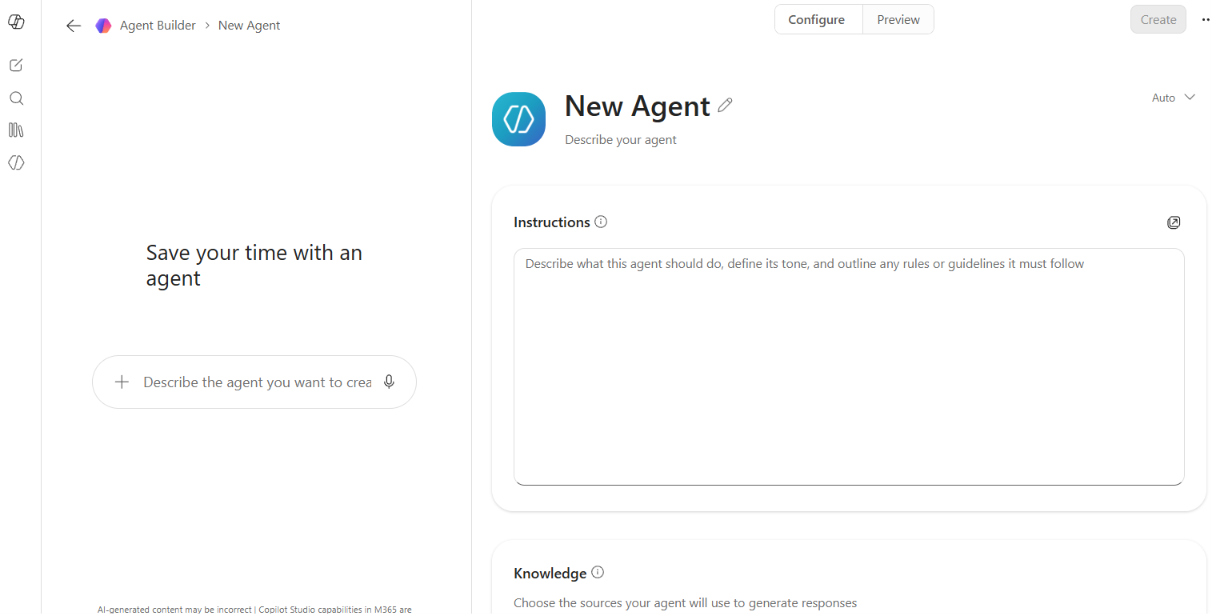
How to find it: Copilot → Agents → New Agent
Best for: Procurement evaluations, recurring content reviews, standardized quality checks, any task your team repeats with similar inputs.
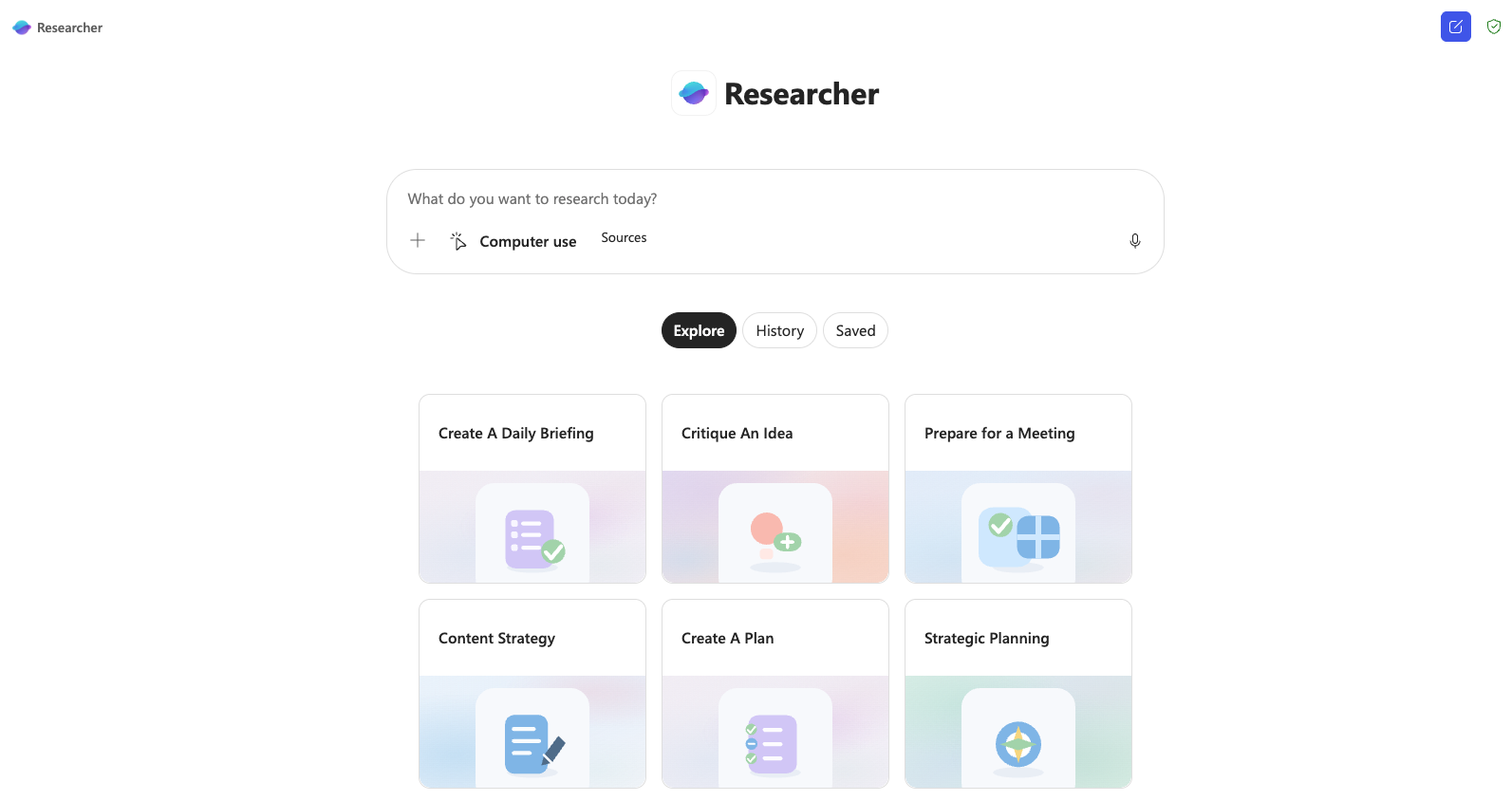
The Researcher Agent is one of Copilot's pre-built agents - no setup, no configuration, ready to use from day one.
You give it a research topic. Before it runs, it asks a few clarifying questions: How long should the report be? What scope should it focus on? Then it searches the web and your Microsoft 365 data simultaneously, pulls from multiple sources, and produces a structured report with sections, visuals, and cited references.
The whole thing takes 5 to 10 minutes. A comparable manual research task could easily take days.
What the output looks like:
How to find it: Copilot → Agents → Built by Microsoft → See More → Researcher
Best for: One-time or occasional research tasks where you need cited, structured output fast. Market analysis, competitive landscape overviews, preparing for a high-stakes meeting on an unfamiliar topic.
Not ideal for: Ongoing projects where you need to return to the same set of documents repeatedly. For that, use a Notebook.
Pages is worth a mention here because it solves a small but real problem: what do you do with a Copilot response you want to keep?
Any Copilot response can be turned into a Page with one click. It becomes an editable document saved inside Copilot's Library, shareable with colleagues, and co-editable in real time.
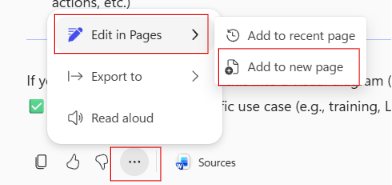
Think of Pages as lightweight internal docs - not as permanent as a Word file saved to SharePoint, but more structured and shareable than a chat response that scrolls away.
Export options: Word or PDF. Not PowerPoint directly, but there's a workaround: export to Word, then open in PowerPoint and use Copilot to convert it into slides.
Pages live in your Copilot Library (left-side menu). Availability varies depending on how your organization's account is configured.
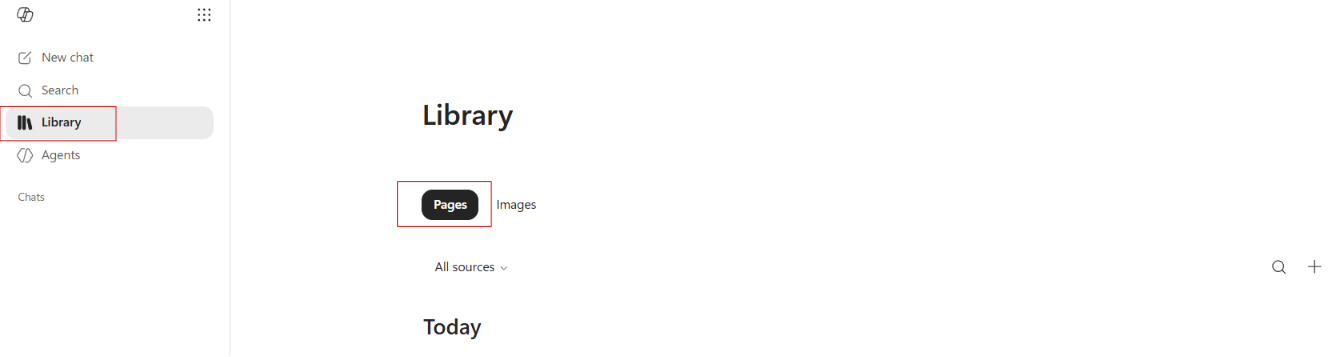
One practical connection: Pages can be added as source documents inside a Notebook. So if you've saved a useful Copilot response as a Page, you can bring it directly into a Notebook project without re-uploading or reformatting anything.
Here's a simple way to decide which feature to reach for:
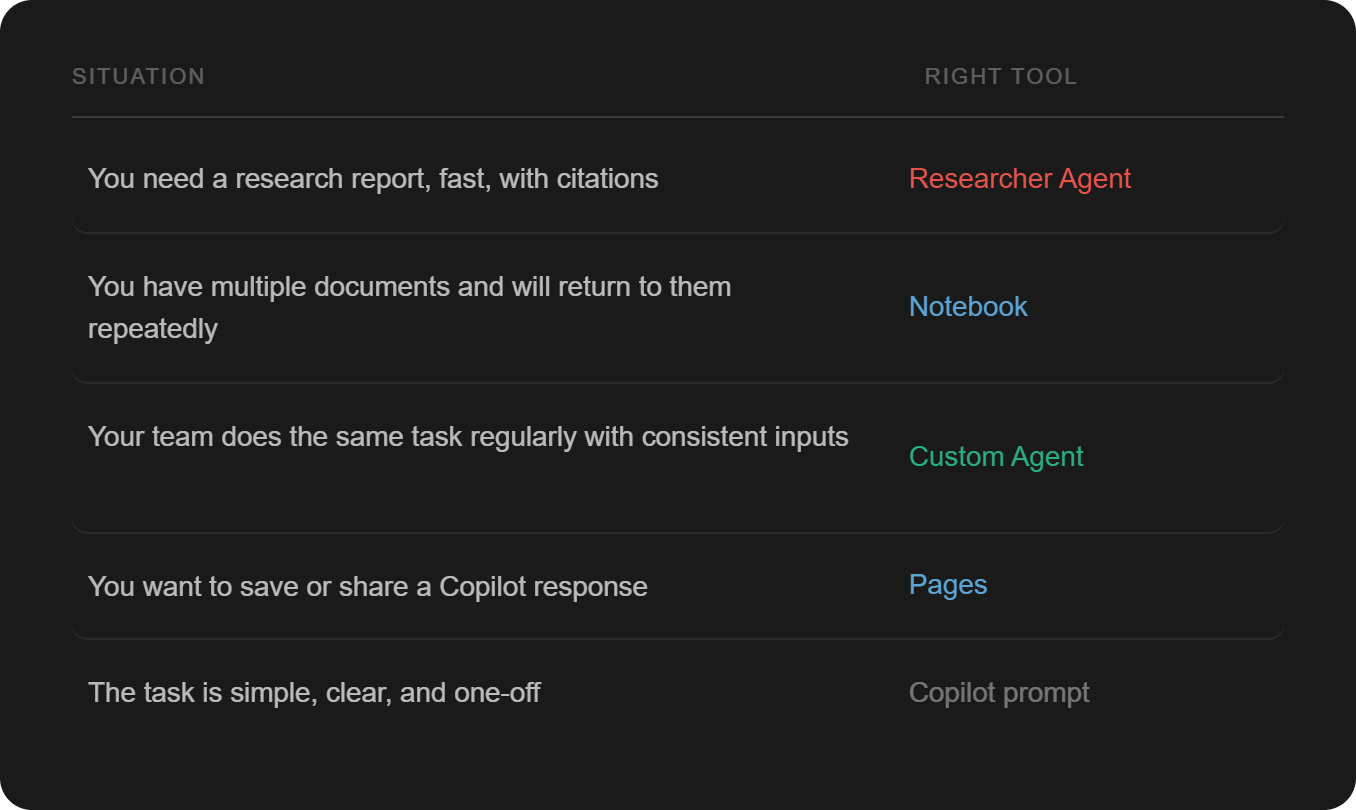
The last row matters. Not everything needs a Notebook or an agent. For simple tasks with a clear input and output, a well-structured prompt is the fastest option. Adding a tool where none is needed just slows you down.
Three scenarios to test yourself:
Scenario 1: Your procurement team evaluates supplier proposals every quarter using the same criteria. Different people handle it each time.
Best choice: Build an agent. Consistent input format, repeatable task, shareable across the team.
Scenario 2: You're preparing for a major RFQ. You have six documents — a brief, a supplier history, past contracts, market data, internal guidelines, and a competitor analysis. You'll be working on this for three weeks.
Best choice: A Notebook. Upload everything, ask questions across all six documents, return to it throughout the project.
Scenario 3: A colleague asks you to quickly summarize yesterday's meeting notes for a stakeholder.
Best choice: A prompt. Fast, clear, no setup needed.
The easiest first step is to try the Researcher Agent on something you'd normally research manually. Pick a topic you're working on right now, set the scope, and let it run while you do something else.
If you're managing an ongoing project with a stack of documents, create a Notebook. Upload the files, ask a few questions, see how it handles them.
If your team has a repeatable task that eats time every week, that's your agent candidate.
The tools are there. The question is just which problem you want to solve first.
These are exactly the decisions we work through with teams in our corporate training programs - not just which tool to use, but how to create, use, and roll them out across an organization.
Want your team to get more out of Copilot? AI Academy's corporate training programs are built for organizations that want practical results, not theory. Your team learns by doing, on real tasks, with real tools.
What license do I need to use these features?
Copilot Chat, included at no extra cost with eligible Microsoft 365 business plans, covers web-grounded chat, Notebooks, and agent creation. The Researcher Agent and the ability to ground Copilot in your organization's data - emails, files, Teams chats - require the Microsoft 365 Copilot add-on license. Pricing varies by plan and region, so check with your IT team or Microsoft directly for current costs. If you're unsure which license your organization has, your IT team is the right starting point.
What is the difference between the Researcher Agent and a regular Copilot chat?
A regular Copilot chat gives you a quick response based on your question and general context. The Researcher Agent runs a deeper process: it asks clarifying questions, searches the web and your Microsoft 365 data, and produces a structured report with sections, visuals, and cited sources. It takes longer (5 to 10 minutes) but delivers something much closer to a proper research deliverable.
Does Copilot Notebooks use the internet?
No. Notebooks only answer based on the documents you upload. If you need web data, use a regular Copilot chat or the Researcher Agent instead.
What file types can I upload to a Notebook?
Notebooks support .docx, .pptx, spreadsheets, PDFs, and saved Copilot Pages. You can add documents at any time through the Reference panel.
Can I share a Notebook with my team?
Yes. Notebooks are shareable and co-editable with colleagues. Note that they cannot be duplicated - each project needs its own Notebook, but uploading files is quick since there are no custom instructions to configure.
Do I need coding skills to build a Copilot agent?
No. Agents are built directly inside Copilot using a conversational interface. You write the instructions in plain language, connect data sources if needed, and share the agent with your team. No technical background required.
When should I use a prompt instead of an agent or Notebook?
For simple, one-off tasks with a clear input and output, a well-written prompt is usually the fastest option. Agents and Notebooks add value when a task repeats regularly or involves multiple documents over time. Adding complexity for its own sake just slows you down.
The Researcher Agent output - how reliable is it?
The Researcher Agent cites every source it uses, which makes it easy to verify. As with any AI-generated content, it's worth checking conclusions against the cited sources, especially for high-stakes decisions. Treat it as a strong starting point, not a final word.
What is a Copilot Page and how is it different from a Word document?
A Page is an editable document that lives inside Copilot, created from any chat response. It's lighter-weight than a Word file and easier to share directly within Copilot. Word documents are more permanent and can be saved anywhere — SharePoint, OneDrive, local drives. Pages export to Word or PDF; they cannot be exported directly to PowerPoint.
Where can I learn to build agents and use these tools effectively?
AI Academy offers corporate training programs designed for teams that want to move from basic Copilot use to confident, practical application. Programs are hands-on and tailored to your organization's tools and workflows.


.png)
.png)